
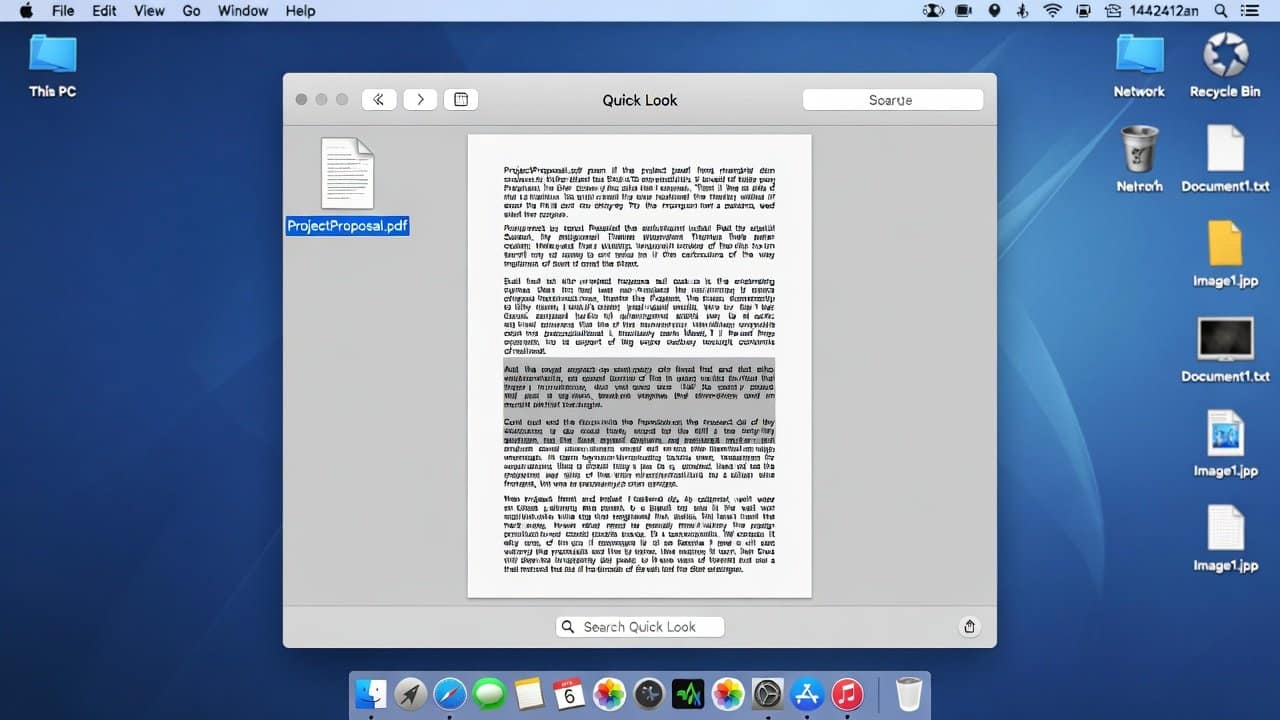
Working on a Mac becomes much easier when you know the right shortcuts and features. Mac provides many amazing features and useful shortcuts for its users. Quick Look is one of those amazing features. The Quick Look tool provides users with a powerful, effective feature. It enables users to see file contents without opening complete applications. This blog will show you the process of using Quick Look to preview files on a Mac. So let’s get into it.
What Is a Quick Look?
Quick Look is a built-in feature in macOS that lets users preview files instantly. It allows users to view multiple files through a single key press. It eliminates the need to open each file individually. Also, the software supports various file formats, which include images, PDFs, videos, documents, and additional file types. It enables time savings, which leads to increased work efficiency.
How to Use Quick Look
Using Quick Look is very easy. The following steps should be followed to use this feature.
- Open Finder on their Mac system.
- Select any file through the interface.
- Press on the spacebar button.
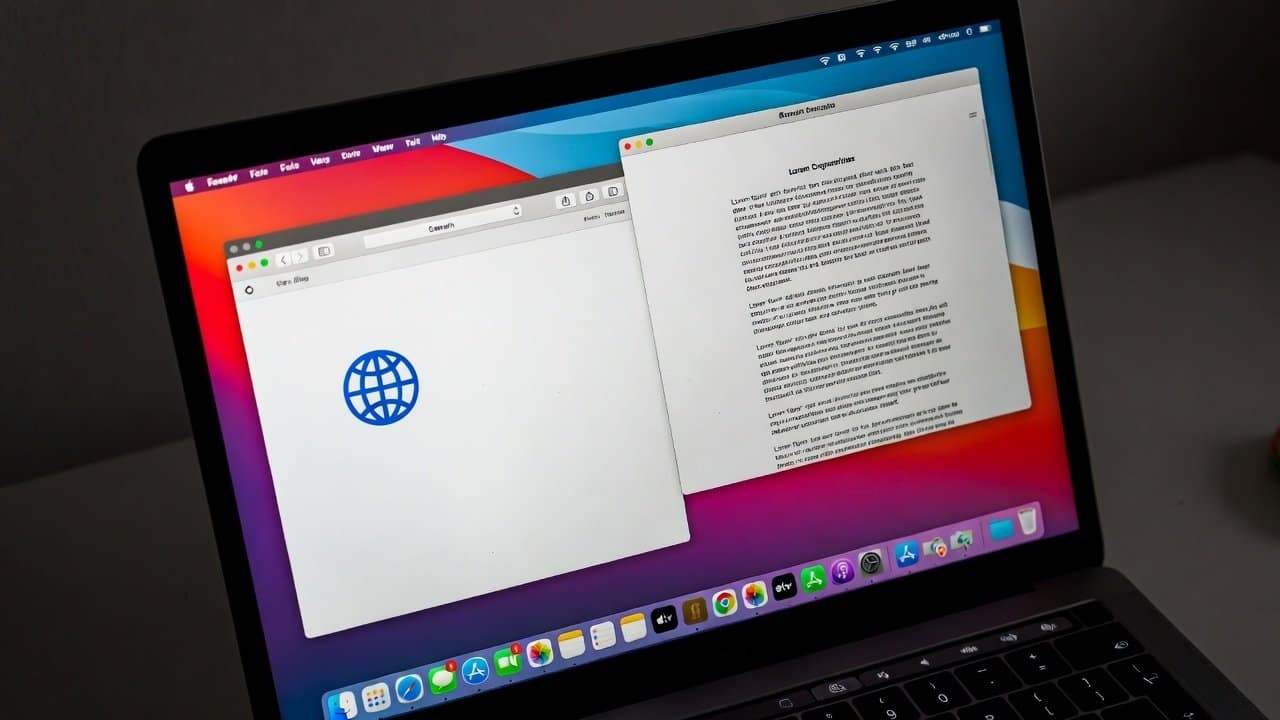
- A preview window will open showing the file content through this action.
- The user can close the preview by pressing the Spacebar button, which they used to open it.
Features of Quick Look
Quick Look provides various features to its users.
1. Preview Multiple Files
- Users can preview multiple files quickly.
- Select multiple files by pressing the Command key.
- Press the Spacebar key.
- Users can navigate between previews by using arrow keys.
- This feature enables users to view files without the need to open each individual file.
2. Use Full-Screen Preview
- Users can use full-screen mode to access larger content displays.
- The full-screen icon lets users enter complete display mode.
- It provides essential functions for displaying visual material, video content, and detailed text records.
3. Play Videos and View Documents
- It enables users to play videos, read PDF files, view text documents, and check presentations.
- Also, it functions as a comprehensive preview tool because of its powerful capabilities.
4. Use Markup Tools
- Quick Look also provides essential tools for basic file modification.
- Users can access markup features by selecting the Markup icon during file preview.
- Users can create notes and drawings.
- They can highlight the text.
- Also, they can sign their documents.
- The process becomes faster because users can complete their work without switching to another application.
Conclusion
In conclusion, the process of learning Quick Look is such an easy task. It enables users to save time when they need to preview files on their Mac computers. Preview users can preview their files by pressing the Spacebar key. Additionally, this key helps them complete their work tasks more efficiently. Quick Look usage allows users to enhance their Mac computer operations. It provides improved speed and greater intelligence.