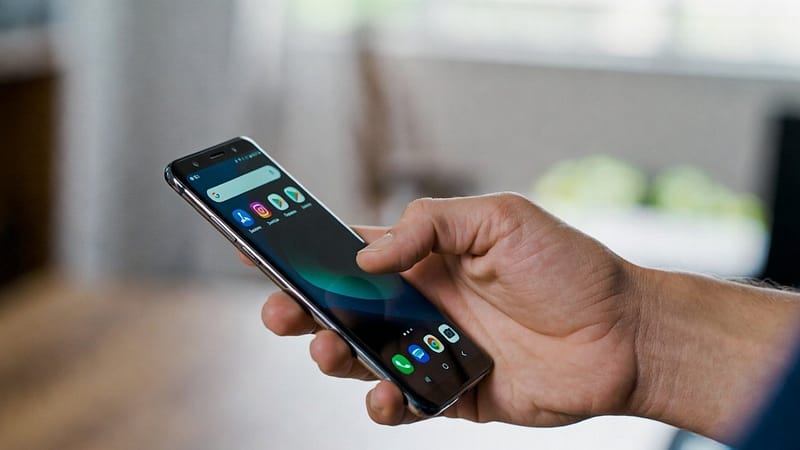

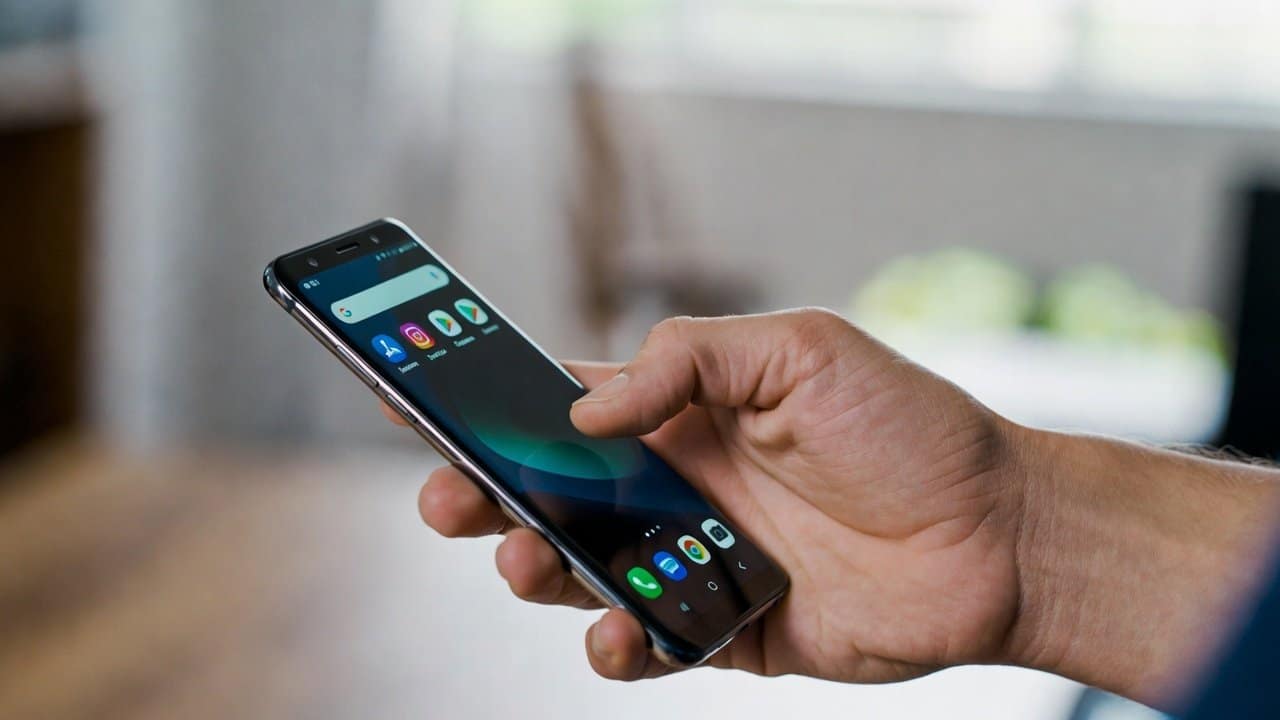
Modern smartphones now have larger screens than ever. It kind of makes it easy for people to use it. Though those big displays are great for watching videos or scrolling around the web, they can feel a little awkward. Means that it can get awkward when you’re trying to operate the phone with just one hand. Additionally, getting to the very top part of the screen often feels weird, especially when you are walking or carrying something. However, Android has a solution for this problem. Android already has a built-in option named One-Handed Mode. In this guide, you’ll learn how to enable One-Handed mode on Android. For more on this topic, browse our Android tips.
What Is One-Handed Mode?
Android’s one-handed mode is a feature that Android mobiles provide. It is where the visible screen area gets a bit lower so you can actually reach buttons and menus with your thumb. Instead of you stretching your hand, the upper portion of the display moves downward for a short moment. That’s why using bigger phones suddenly feels more comfortable.
Steps to Enable One-Handed Mode on Android
Step 1: Open Settings
- Firstly, grab your Android phone.
- Unlocked it.
- Then open the Settings app.
- Keep scrolling, and tap System.
- On some devices, this can be tucked under Advanced Features or in Accessibility.
Step 2: Find One-Handed Mode
- Second, tap on the gestures tab.
- Then choose one-handed mode.
- Different brands can put this setting a bit in different places, but the feature name is normally the same.
- So, it should be easy to find after a quick look around.
Step 3: Turn On the Feature
- Thirdly, turn the switch on so one-handed mode is enabled.
- You might notice extra little options too, like:
- Pull the screen closer into reach.
- Show notifications
- Exit after a timeout
- Pick the settings that really line up with what you prefer.
Step 4: Activate One-Handed Mode
- Fourthly, once it’s enabled, use the gesture to turn it on.
- On most Android phones, swipe downward from the lower edge of the screen.
- The display will slide a bit down, so the top area becomes easier to reach.
Step 5: Return to Normal View
- Lastly, to get out of One-Handed Mode, tap the blank area above the shrunken screen or try swiping up from the bottom.
- Your display will go back to full size, right?
Which Phones Support It?
Most phones that run new Android builds have this feature. These devices include the following:
- Samsung Galaxy
- Google Pixel
- OnePlus
- Xiaomi
The precise steps may differ a bit based on the brand or maker, but it’s usually something you can find in the settings menu.
Tips for Better One-Handed Use
To get the most from this feature, try these tips:
- Use gesture navigation.
- Adjust the keyboard size.
- Pace frequently used apps on the lower home screen.
- Enable larger text.
Conclusion
In conclusion, learning how to enable one-handed mode on Android can make your phone feel way more friendly in daily life. It makes your daily life so much easier by using large mobile phones with only one hand. With just a few taps, you can reach the whole display in a comfortable way, even when you are holding it with one hand only. So, turn it on and get faster, safer, and more convenient mobile use.