

The experience of internet browsing becomes unsettling during nighttime hours. Many students and freelancers browse at nighttime. But this creates a lot of problems for that. The bright screens generate eye discomfort, which leads to sleep disturbances. Therefore, this is the reason why most internet users choose to use dark mode during their online activities. Dark Reader stands out as the most effective tool for achieving this task. In this blog, we will tell you how to use Dark Reader for night browsing through an easy-to-understand method. So, let’s get started.
What Is a Dark Reader?
Dark Reader is a widely used browser extension. It transforms bright websites into dark mode. This extension operates across nearly all websites which lack built-in dark theme compatibility. Furthermore, it creates a complete colour transformation. This includes brightness adjustments, contrast modifications and proper colour rendering. This also decreases eye strain which occurs during extended periods of web browsing.
Steps to Use Dark Reader for Night Browsing
Step 1: Install Dark Reader
- Firstly, the users need to install the extension.
- Search for “Dark Reader” in your browser extension store, which includes the Chrome Web Store.
- Then click “Add to Chrome” for your browser.
- After clicking, confirm the installation process.
- The Dark Reader icon will appear in your browser toolbar after you complete the installation process.
Step 2: Turn On Dark Mode
- Secondly, after completing the installation process, click the Dark Reader icon.
- It will display a basic toggle switch which users must activate to enable dark mode.
- Also, by doing this, the system will transform most websites to dark mode immediately.
- The new feature improves user comfort for immediate online working.
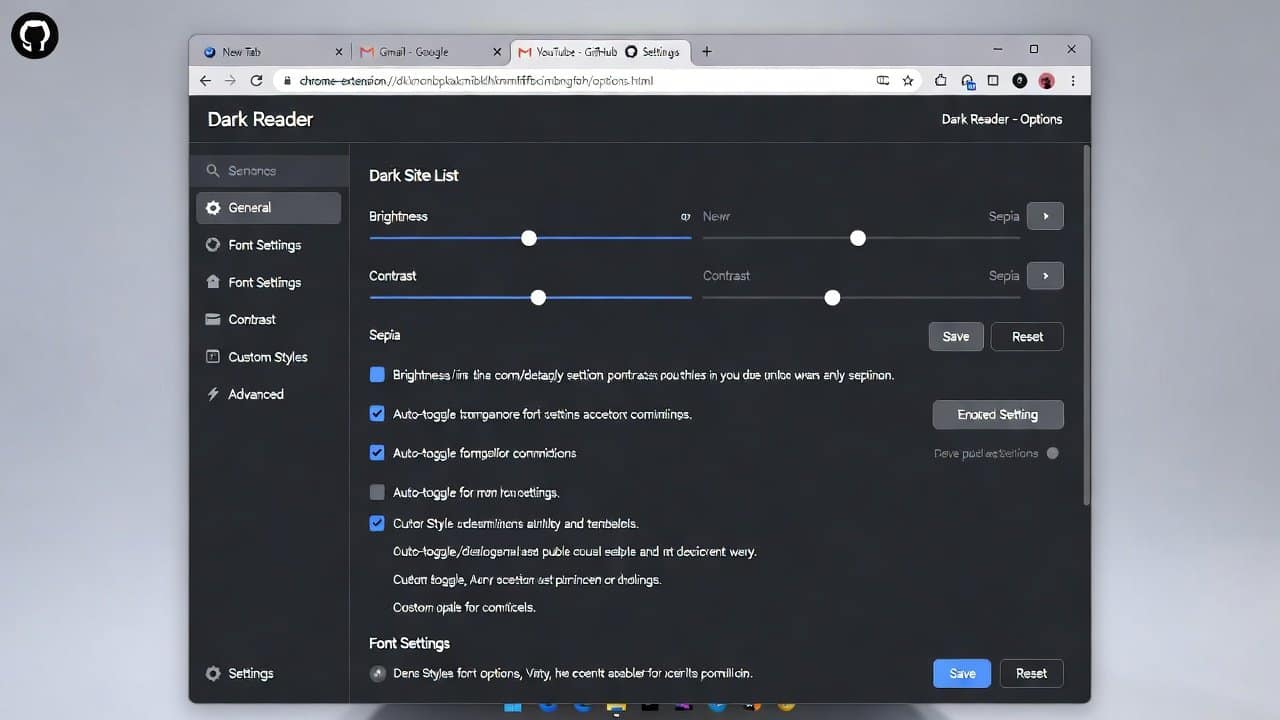
Step 3: Adjust Brightness and Contrast
- Thirdly, Dark Reader provides users with tools to create their own customisation.
- Users have the ability to modify three different settings, which include the following:
- Brightness
- Contrast
- Sepia (which shows warm tones).
- These settings help users to establish their ideal visual comfort level.
- It allows users to decrease the brightness level, which enables them to use it during nighttime hours.
Step 4: Enable or Disable for Specific Sites
- Fourthly, it is common that users will not require dark mode for any particular websites.
- Therefore, the Dark Reader extension provides users with clear control over website dark mode settings.
- It enables users to activate dark mode across all websites.
- But they can also choose to turn off the feature for particular websites.
- This creates a better online experience for users.
Step 5: Use Scheduling Feature
- Lastly, another useful feature is scheduling.
- The Dark Reader application enables users to schedule their activities.
- They can schedule automatic activation at night and automatic deactivation during daytime hours.
- It provides eye protection through automated settings which users can operate.
Conclusion
In conclusion, learning how to use Dark Reader for night browsing can greatly improve your online experience. Dark Reader serves as the best night browsing tool for students and freelancers. It serves so many benefits to its users. Users can protect their eyes and browse comfortably at night. They can achieve this by a clear installation process and user-friendly customisation options. Dark Reader provides users with a better browsing experience that promotes their health. So, if you also want to improve your night browsing experience, then install Dark Reader now.














