
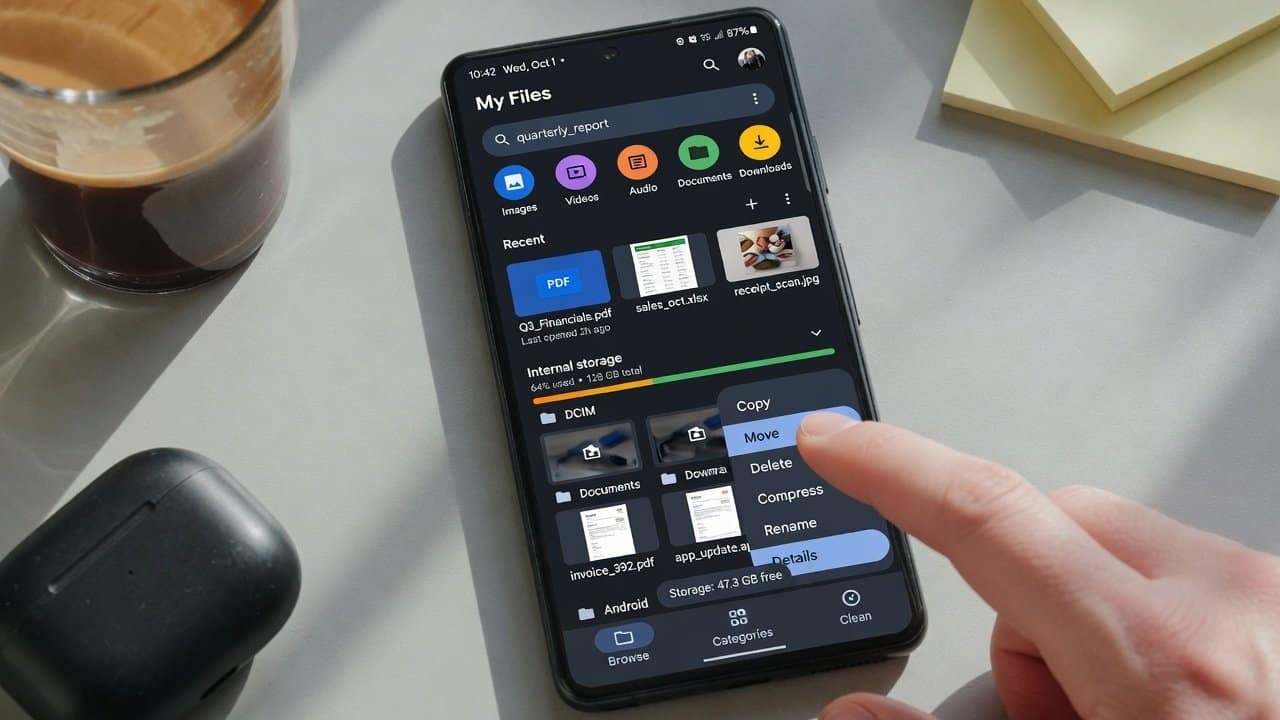
Your Android phone has built-in file management tools. This tool helps users organize their device when it becomes messy. But most people do not notice this useful feature because they never pay attention to it. However, this tool is something that allows them to manage their files with quick and easy methods. The built-in file manager of Android enables users to find documents and move photos through just three taps. In this guide, we will tell you how to use Android’s built-in file manager using different methods. For more on this topic, browse our Android tips.
What Is Android’s Built-In File Manager?
Android provides a built-in file management application, which typically uses the name Files or My Files or File Manager. Its name is solely based on the smartphone brand. This application enables users to explore directory structures. Further, it gives access to them to visit their downloaded files. Also, it helps them to manage their files without needing additional software. Lastly, it provides a secure and lightweight solution that can be used easily.
How to Open the File Manager
First, open your app drawer and look for one of these names:
- Files My
- Files
- File Manager.
The app allows you to access your phone’s internal storage and SD card, which are available to you.
Methods to Use Android’s Built-In File Manager
1. Organize Files into Folders
- Firstly, the most effective method to use Android’s built-in file manager is to create different folders.
- Users can create folders easily.
- They can create folders for:
- School documents
- Work files
- Photos
- Videos
- The three-dot menu provides access to new folder creation.
- Users need to provide them a specific name.
- Your files become more accessible because of this change.
2. Move and Copy Files
- Secondly, this tool enables users to create instant file transfer links between their folders.
- Firstly, press and hold the file.
- Secondly, select the Move or Copy option.
- Thirdly, select the destination folder.
- Lastly, tap the Done button.
- This feature helps users to manage their downloaded files, screenshots, and their academic work.
3. Delete Unwanted Files
- Thirdly, the combined effect of duplicate files and outdated downloads creates an ongoing problem.
- This consumes essential storage capacity.
- The file deletion process requires users to take just three steps, which include
- Selecting a file
- Tapping the trash icon
- Confirming their deletion choice
- It helps your mobile to operate better, and you obtain additional storage space.
4. Use the search feature.
- Fourthly, the search function provides faster results for file retrieval compared to scrolling through multiple files.
- Click the search icon.
- Enter either the complete file name or the file extension, which includes
- JPG
- MP4.
- The system enables quick document retrieval because it saves time and allows users to find essential documents.
5. Share Files Easily
- Fifthly, the Android operating system provides users with an efficient file sharing system through its built-in file manager.
- Users can share any file by selecting it and choosing the Share option from the menu.
- The user can send the file through the following platforms:
- Gmail
- Bluetooth
- Google Drive.
- The system works best when users need to send reports, photos, and presentations to other users.
Check Storage Usage
- Lastly, most file managers provide a storage overview to their users.
- This section displays the storage space occupied by photos, videos, applications, and documents.
- People should regularly check this section.
- It will help you find big files that you should delete because you do not require them anymore.
Conclusion
In conclusion, the process of learning to use Android’s built-in file manager can provide various benefits to its users. It will enable users to manage their time better. It also helps in decreasing the amount of digital clutter on their mobile devices. Further, it enables users to organize their files, while they can create additional storage space and send documents through the system. Thus, the application already exists on your mobile device, and all its users can access it. Also, this tool will enhance your Android device’s performance by maintaining its cleanliness, speed, and organizational structure.