

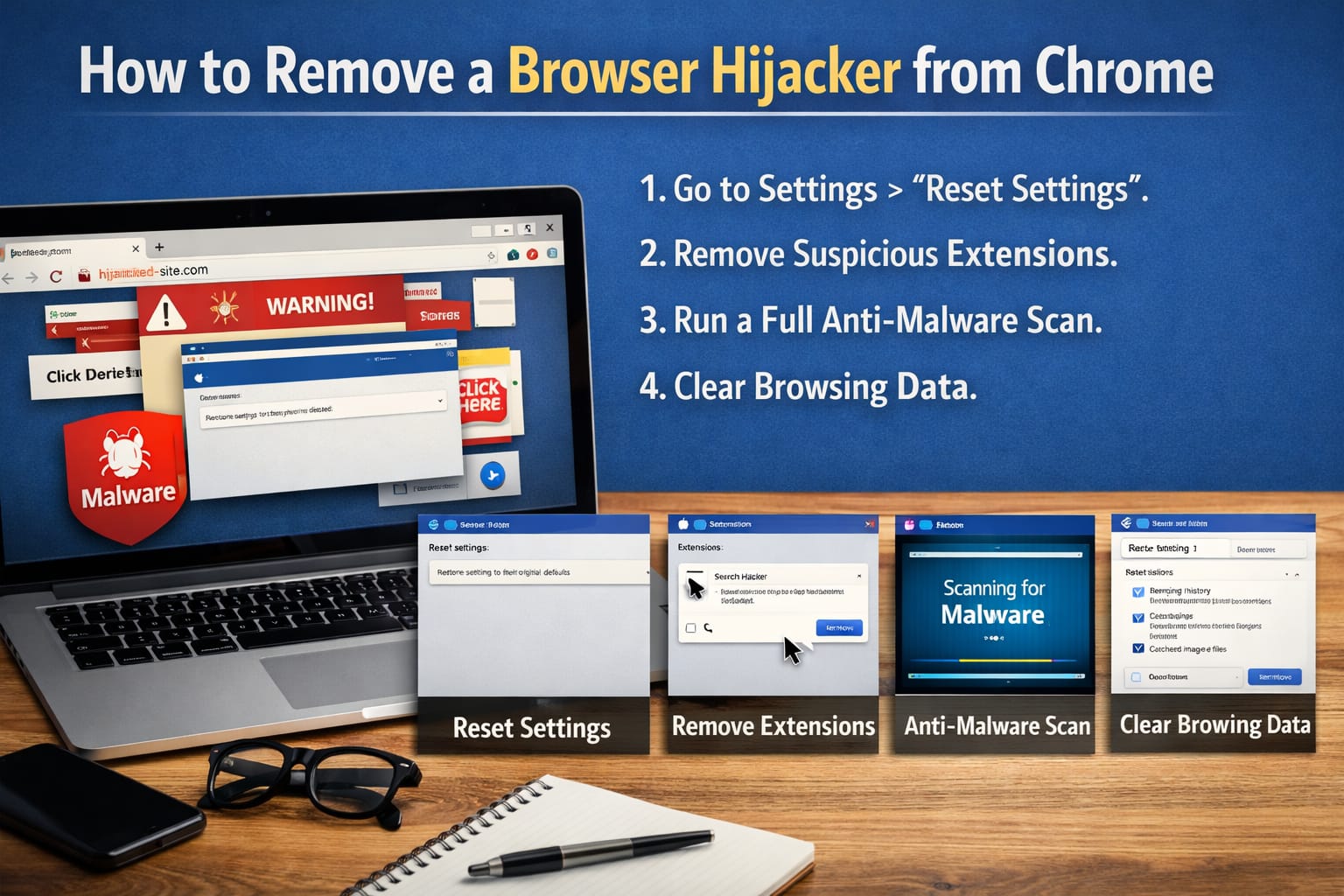
The appearance of strange browser behavior indicates the presence of a browser hijacker. Browser hijackers are malware programs that alter your browser settings without your consent. This program can change your search results, display unwanted advertisements, and monitor your browsing behavior. This program takes full control of your chrome. This problem occurs to numerous users who use Google Chrome. Therefore, in this blog, we will provide a step-by-step guide for users to remove a browser hijacker from Chrome. So, let’s get into it.
What Is a Browser Hijacker?
A browser hijacker functions as a malicious software program. It takes control over your web browser settings through its installation. It has the ability to modify your homepage, primary search engine, and new tab page settings. Also, it causes security threats and browsing performance issues. Therefore, it is important to remove this malicious software immediately.
Signs of a Browser Hijacker
These are the signs that will show your browser is hijacked.
- The homepage and search engine of your system change without your permission.
- Users will experience excessive interruptions from pop-up advertisements.
- Your browser sends you to websites that you did not intend to visit.
- It will install new extensions that you did not authorize.
- Your browser will operate at a slower speed and will not respond to your commands.
Steps to Remove a Browser Hijacker
The following steps will help you to remove a browser hijacker from Chrome.
Step 1: Remove Suspicious Extensions
The first step is to check your browser extensions.
- Open your Chrome.
- Click on the three dots menu.
- Go to Extensions and then to Manage Extensions.
- Find unknown or suspicious extensions.
- Then click “Remove” for their deletion.
Step 2: Reset Chrome Settings
The second step is to reset your Chrome setting.
- Go to Chrome Settings to complete his task.
- Scroll down and click on the “Reset settings” button to proceed.
- Select the “Restore settings to their original defaults” option to continue.
- Then confirm the reset process.
- The process will delete all undesired modifications.
Step 3: Clear Browsing Data
The third step is clearing your browsing data, which will delete dangerous files.
- Go to the Chrome Settings menu.
- Select the Privacy and Security option.
- Then select “Clear browsing data.”
- Select “Clear data” to complete the process.
Step 4: Check Installed Programs
The fourth step is to check all your installed programs, as these hijackers often come with installed programs.
- Open the Control Panel from the Windows operating system.
- Go through programs that you have installed.
- Search for programs that you do not know or that you have recently installed.
- Delete any programs that appear dangerous.
Step 5: Update Your Browser
Lastly, the security of your system requires you to keep your browser application up to date.
- Open Chrome Settings.
- Go to “About Chrome.”
- Install any available updates.
- The security updates of the system protect your browser from current threats.
Tips to Prevent Browser Hijackers
Prevention is always better than cure. The following tips should be followed:
- Users should not download software from websites that they do not trust.
- They should not interact with advertisements or pop-up windows.
- Users should install extensions only from trusted sources.
- Always maintain your system and browser through regular updates.
- Also implement dependable antivirus software for their protection needs.
Conclusion
In conclusion, it is important to remove browser hijackers from Chrome. It is because it keeps users’ online activities secure. This blog provides a solution to your problem that requires some simple steps to remove this from your browser. Users can follow the given tips too that will also help in reducing your browsers. The implementation of safe browsing tips will protect you from future security threats. So, take action and keep your browser clean, fast, and secure.














