

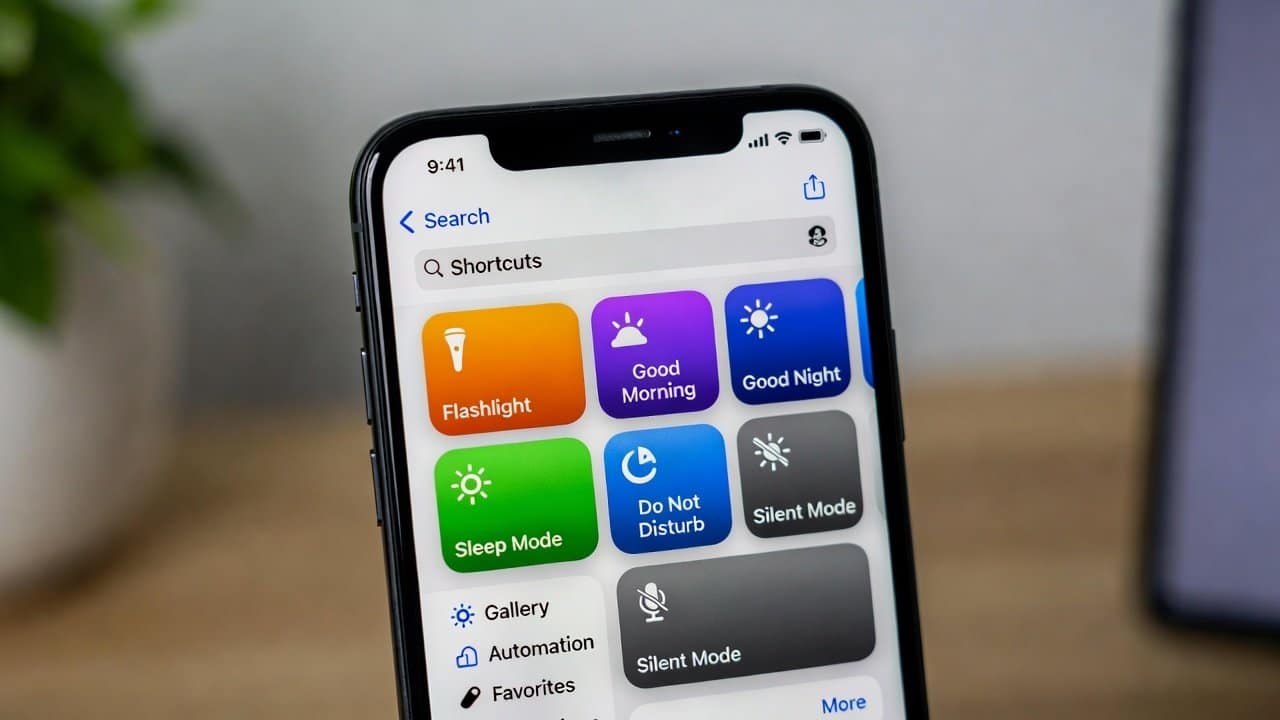
Your iPhone is more powerful than most people actually realize. Beyond just calls and apps, it can also help automate daily tasks and save your time. The iPhone provides several tools that can make the automation really fast. One of the best tools is Apple’s built-in automation system, which is called Shortcuts. In this blog, you’ll learn how to use the Shortcuts app on iPhone for automation in a simple way.
What Is the Shortcuts App?
Shortcuts is this free app made by Apple. It helps users to automate stuff on their iPhone. Also, it lets you build “shortcuts.” These shortcuts are basically sequences of actions your phone runs automatically. Or users can trigger them with just one tap. For instance, users could have your device switch on Do Not Disturb, start music, and also open your calendar all at once. So in the end you save time, and you do less manual work.
Why Use Shortcuts for Automation?
- It simplifies the daily routine.
- Users don’t really have to tap and open multiple apps, one by one anymore.
- Also, it boosts productivity a lot.
- Those repetitive tasks just happen in the background, automatically, without users having to remember anything.
- Lastly, it keeps everything more organized.
- Your phone basically runs according to your schedule.
- Automation ends up making your iPhone more efficient.
Steps to Use Shortcuts App on iPhone
Step 1: Open the Shortcuts app.
- Firstly, start by opening the Shortcuts app on your iPhone.
- If it is not present there, go ahead and get it from the App Store.
- After you open it, you should see things like “My Shortcuts,” “Automation,” and “Gallery.”
Step 2: Explore the Gallery
- Secondly, the Gallery section has ready-made clear shortcuts.
- They cover a few things like:
- morning routines
- work focus modes
- travel shortcuts
- smart home controls
- Users can include any shortcut with just a single tap.
- Honestly, this is the easiest way to get started.
Step 3: Create Your First Shortcut
- Thirdly, to create your own automation, tap the “+” button.
- Then select “Add Action.”
- You can go for actions like
- Sending a message
- opening apps
- playing music
- setting reminders
- Try combining multiple actions so you can build a full routine.
Step 4: Set Up Automation Triggers
- Fourthly, go to the “Automation” tab.
- Here you can set triggers like
- Time of day
- Location
- App opening
- Battery level
Step 5: Test Your Shortcut
- Fifthly, after you set up that shortcut, test it just to be sure.
- Tap “Play” and check if it runs the way you expect.
- If it’s not working right, edit the actions and do it again.
- This part makes sure everything goes smoothly, without any awkward glitches.
Step 6: Use Voice Commands with Siri
- Lastly, you can also turn on shortcuts by using Siri.
- Just say something like
- “Hey Siri, start my morning routine.”
- Your iPhone will run all those actions instantly.
- This makes automation even more handy and smoother.
Conclusion
In conclusion, the Shortcuts app is one of the most handy tools on the iPhone. They provide such helpful settings for the users. With just a few steps, users can automate daily stuff and build clever routines. Basically, it makes things run smoother. So, start using it today and make your iPhone feel like a strong productivity sidekick because it can do more than you think.














