

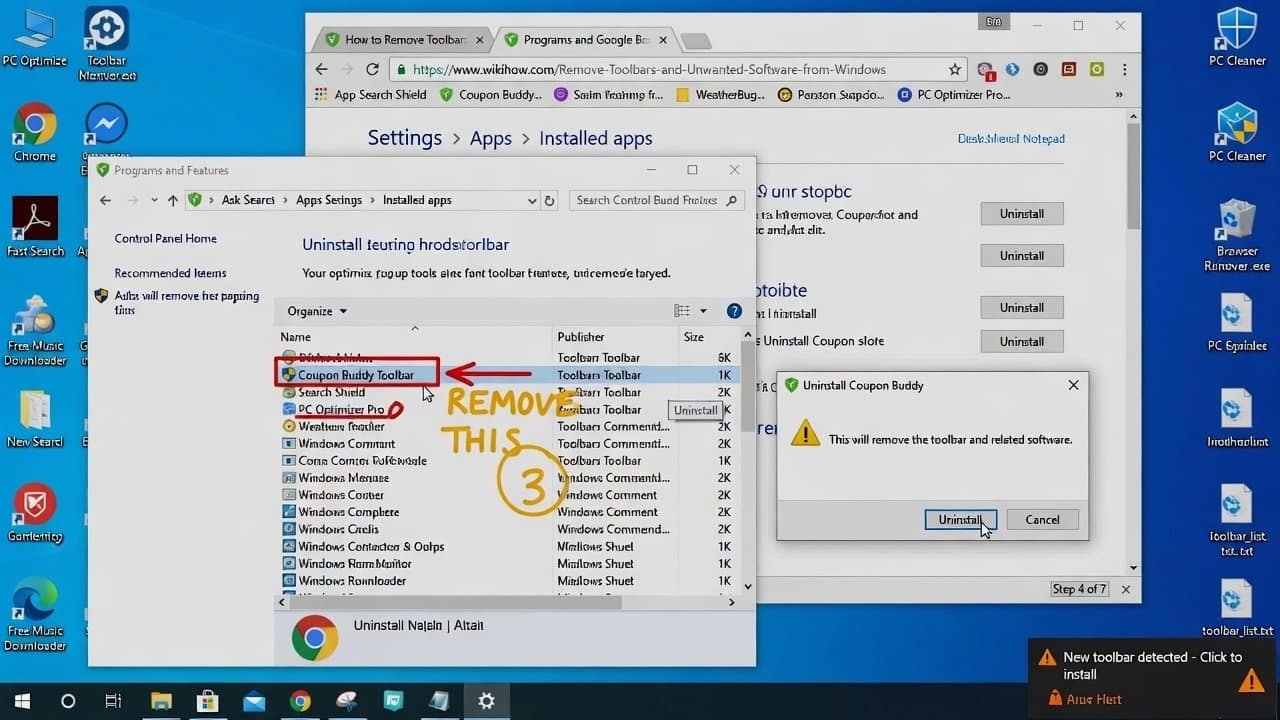
Is your computer acting a little slower than usual? Do you notice strange tool bars showing up in your browser? Or have notice programs you don’t really remember installing? If yes, then your PC might be dealing with unwanted software. Further, these extra applications can make the system slow, pop up advertisements, and sometimes observe your usage. Therefore, in this guide, you’ll learn how to remove toolbars and unwanted programs from Windows using safe, and pretty clear steps. So let’s get started.
What Are Toolbars and Unwanted Software?
Toolbars are browser extensions that kind of bring in extra buttons and sometimes a search box. Some of them are actually helpful, but there are some extensions that get installed in your computer system without any really clear permission.
Unwanted softwares are often referred to as PUPs (Potentially Unwanted Programs) that may end up doing a few things like:
- changing your homepage.
- showing pop up ads.
- slowing down your computer.
- tracking your browsing activity.
So removing them helps with performance and also with privacy too.
Signs Your Computer Has Unwanted Software
These are the following signs that will show your computer has unwanted software.
- New browser tool bars
- Unexpected pop up ads
- Browser redirects, and more
- Slower start up times
- Programs you don’t recognize
If any of this shows up, then it’s time to give your system a clean.
Steps to Remove Toolbars and Unwanted Software
Step 1: Uninstall Suspicious Programs
- First, go into Settings.
- Then Apps.
- Then Installed Apps in Windows.
- Then sort that list by installation date and scan for unknown programs.
- If you spot something you don’t recognize, or that you don’t really need, uninstall it.
Step 2: Remove Browser Extensions
- Secondly, Toolbars are usually installed as browser extensions.
- It can be open on Google Chrome , Microsoft Edge, or Firefox.
- Users can open the Extensions tab and remove anything that looks suspicious.
- After you take them out, restart your browser.
Step 3: Reset Browser Settings
- Thirdly, If your homepage, or your search engine, changed for some reason, reset your browser settings.
- This will usually bring it back to how it was before with the addition of the new tab page and notification permissions.
- By doing this your browser will be back to a normal state.
Step 4: Run a Malware Scan
- Fourthly, use trusted free tools like Malwarebytes or Microsoft Defender.
- Use these tools for a full scan to check everything.
- After that remove any suspicious thing it finds, even if it seems small.
- This can wipe out sneaky adware and other unwanted programs.
Step 5: Disable Startup Programs
- Fifthly, some annoying programs seem to pop up by themselves when Windows boots. Try the following steps to avoid it
- Open Task Manager, then go to the Startup tab.
- Disable anything that looks unfamiliar.
- This makes the system start up a lot faster.
Step 6: Delete Temporary Files
- Lastly, temporary files can hold leftover bits from unwanted software.
- Try Windows Disk Cleanup or Storage Sense to get rid of them.
- Also it helps you reclaim storage space.
How to Prevent Unwanted Software
To avoid future problems,
- Download software only from trusted websites.
- Pick “Custom Install” while you install apps.
- Read each installation screen carefully.
- Keep Windows and your browsers up to date.
Conclusion
In conclusion, learning how to remove toolbars and unwanted software from Windows can fix your computer. It’s an easy way to boost your computer’s speed, and also its security. Users can uninstall suspicious programs,remove browser add-ons or extensions, and run an antivirus sweep. These steps can get your PC back to a more normal state. So, clean up your system, and get a faster, safer Windows experience.














