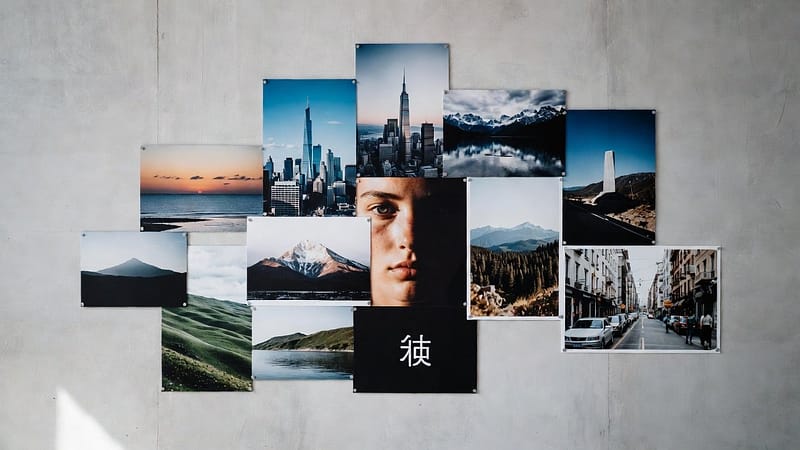

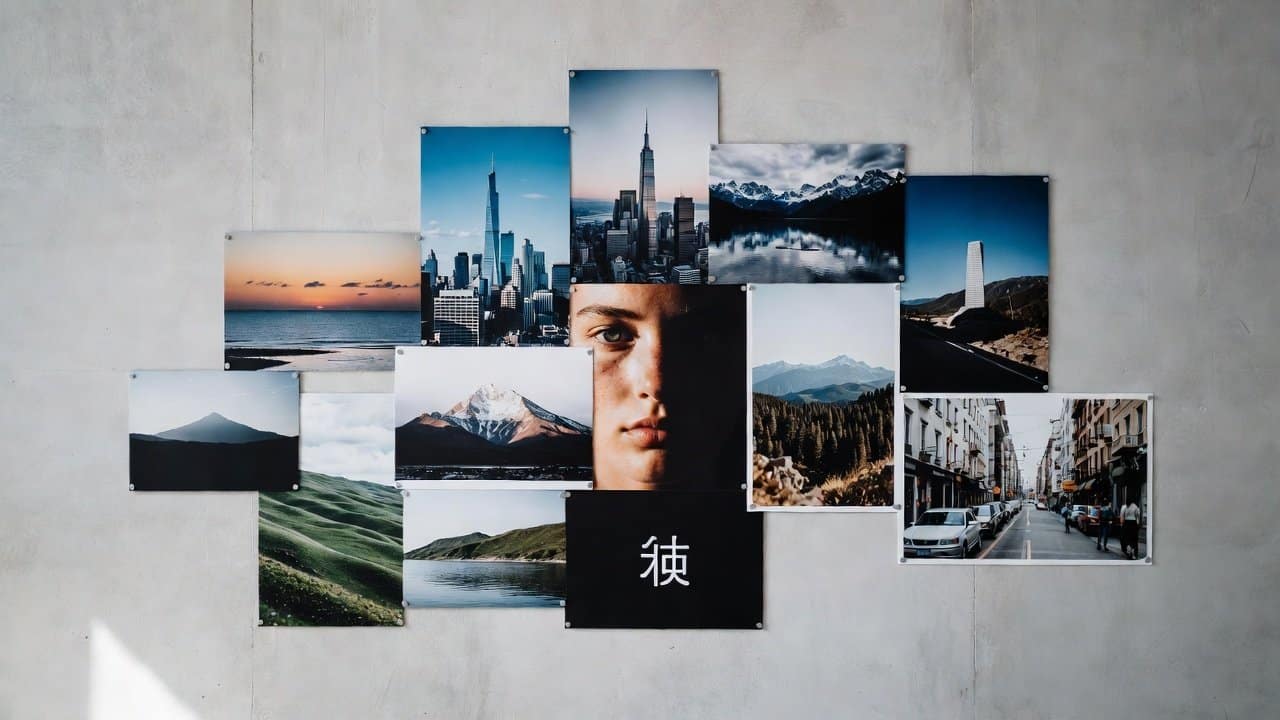
Sometimes, one photo isn’t enough. It was not enough to show the whole plot behind the picture. So people thought to make a collage and compare the before-and-after moments. Or combine several pictures into one single frame for social media or even presentations. With advanced tricks and apps, now this editing work is not difficult. Users don’t really need advanced editing knowledge. In this guide, you will learn how to merge multiple photos into one, using free and simple tools. For more on this topic, browse our how-to tutorials.
Why Combine Photos?
Putting photos together lets you present things a lot more clearly. Instead of separate images scattered around, you can make one combined view, and it feels smoother and more polished.
You could, for instance:
- Create a photo collage
- Show progress over time
- Compare products or designs side by side
- Share travel memories in one single image
Best Free Tools to Use
A few tools make this process pretty simple. Like
- Canva
- Google Photos
- Adobe Express
These options come with handy templates and a drag-and-drop way to edit pictures.
Methods to Combine Multiple Photos Into One
Method 1: Use Canva
The first method is to use Canva. Canva is kind of one of the easiest ways to put photos together.
Step 1: Open Canva.
- Go to Canva and make a free account.
- Pick a design size such as Instagram Post, Presentation, or a Custom Size option.
Step 2: Upload Your Photos
- Tap the Upload button and select the photos you want to combine.
- Those photos show up in the sidebar area.
Step 3: Add a Grid or Collage Template
- Search for “photo collage” or just select a grid layout.
- That usually gives you built-in, ready-made spots for every image.
Step 4: Drag Photos into the Layout
- Place each photo into its frame.
- Canva then rescales everything and aligns it for you.
Step 5: Download the Final Image
- Hit Share, then choose Download.
- Save your combined result as PNG or JPG.
Method 2: Use Google Photos
The second method is to use Google Photos.
- Google Photos also has a collage feature.
- You can open the app and then pick a few photos at once.
- After that, tap Create Collage, and it will make it.
- The app then combines everything into one single picture automatically.
Method 3: Use Adobe Express
The third method is to use Adobe Express.
- Adobe Express gives you advanced templates along with more design stuff.
- Users can upload their photos.
- Then I can pick a layout.
- They can also customize the colors, text, and spacing.
- After doing all that, download your finished image.
Tips for Better Results
To make those attractive combined photos and sort of make them pop:
- Firstly, use images with close, similar sizes, not wildly different ones.
- Secondly, keep one consistent theme, like the same mood or style.
- Thirdly, leave a bit of space between the pictures so it does not feel packed.
- Avoid overcrowding the design.
Best Uses for Combined Photos
You can use combined images for the following:
- Social media posts
- Product comparisons
- School projects
- Marketing materials
- Family photo collages
This is because it makes your visuals more engaging and informative.
Conclusion
In conclusion, combining multiple photos into one single image is kind of a fast and simple process to do. Users can use tools like Canva, Google Photos, and Adobe Express to carry out this process. Just with a few steps you can make pretty collages and neatly organized visuals. It can turn multiple pictures into one polished, sharp image that looks nicer than before. So, start using these tools now.