
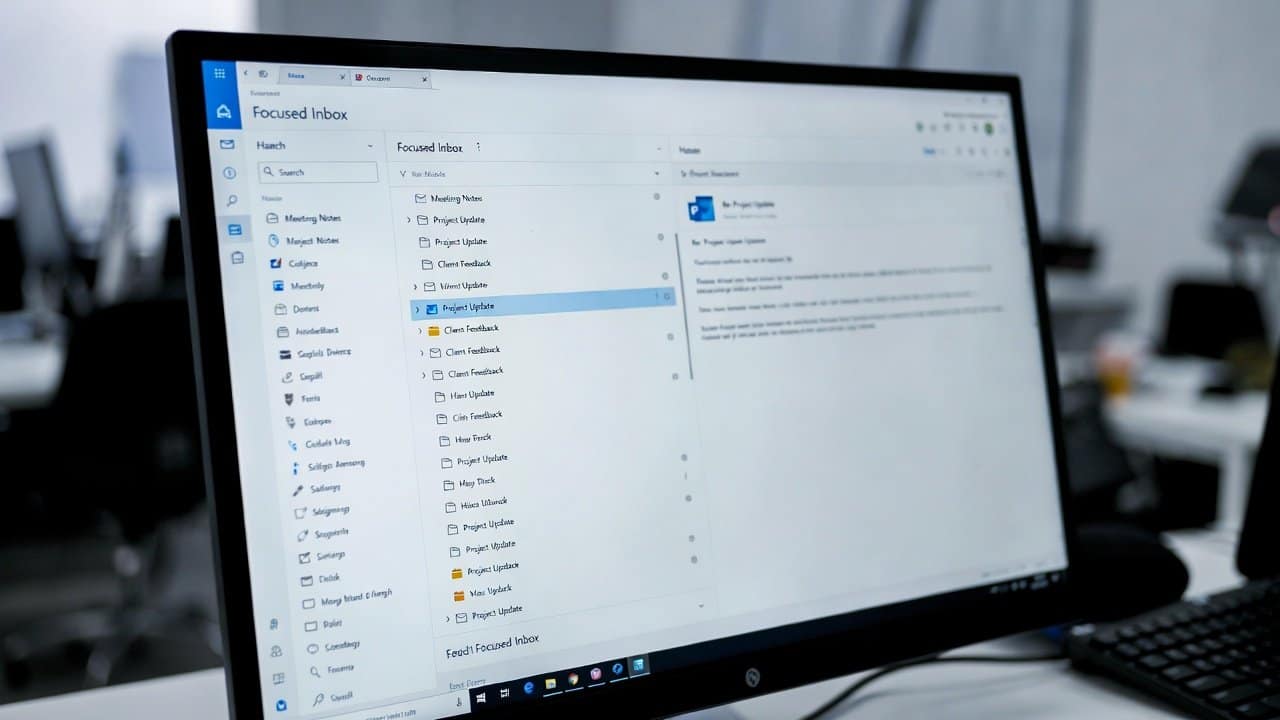
If your inbox is full of newsletters, promotions, and notifications, finding the really important emails can get kind of frustrating. It even causes the problem in which a person can accidentally delete the important document instead of the other. They misplaced their important emails. Fortunately, Microsoft Outlook has a clever feature called Focused Inbox. Further, it automatically divides key messages from less urgent ones, like a quiet little sorting assistant. In this blog, you will learn how to use the Outlook Focused Inbox feature. So, you can arrange your emails better and improve your productivity. For more on this topic, browse our email and internet tips.
What Is a Focused Inbox?
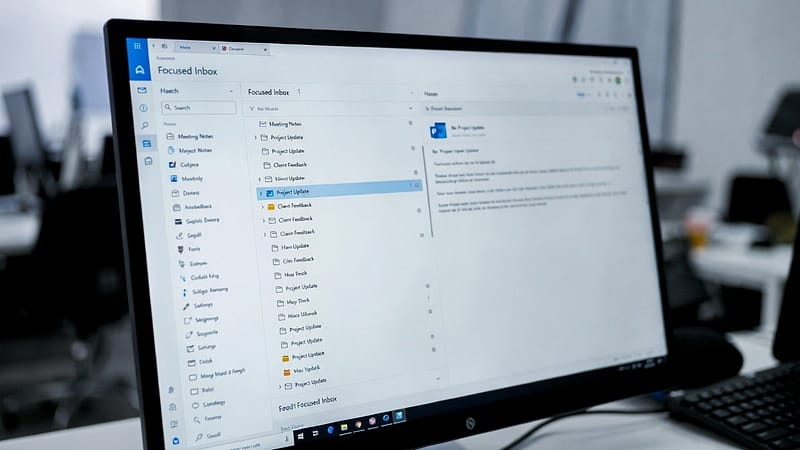
Focused Inbox is a built-in Outlook feature. It divides your inbox into two tabs.
- Focused: The first part is focus, which includes those important emails from people and contacts you actually deal with the most.
- Other: Second includes other things like newsletters, promotions, and messages.
Because of this, users are able to focus on the essential emails without all those distractions.
Why Use a Focused Inbox?
Focused Inbox offers a few benefits:
- For beginners, it cuts down on inbox clutter, so everything feels calmer.
- Then it saves their time, because it spotlights the important messages without making you dig.
- And over time, it learns from what you do, and then it gets more precise and quick.
Lastly, it seems like a solid tool for busy professionals and students.
How to Enable Focused Inbox on Outlook
Turning on Focused Inbox is basic.
1. On Outlook for Windows
- Open Outlook.
- Go to the View tab.
- Then, choose the Show Focused Inbox option.
2. On Outlook Web
- Open Outlook in your browser.
- Tap the Settings icon.
- Turn on the Focused Inbox option.
- It will show up right away.
3. On Outlook Mobile
- Open up the Outlook app.
- Then go to Settings.
- Turn on Focused Inbox.
- After it is activated, your inbox will automatically get split into two tabs.
How Focused Inbox Works
- Outlook uses machine learning to analyze how you do email. It looks at stuff like
- Who sends you messages
- Which emails you open first
- Which conversations actually need your reply
- It also pays attention to
- What you delete
- Ignore
- Over time
- Outlook will get better and better at arranging your messages in a more accurate way.
How to Train a Focused Inbox
Sometimes, Outlook will drop a message into the wrong tab. But you can fix this problem by following these steps:
- Right-click the email
- Then pick Move to Focused or Move to Other.
If you want, you can also apply the same rule to later messages. That way you teach Outlook your preferences in a practical way.
When to Turn It Off
- Some users just like to see all their emails in one big list.
- If Focused Inbox doesn’t quite match your workflow, you can turn it off anytime too.
- You can follow the same steps you used to set it up in the first place.
Conclusion
In conclusion, learning how to use Outlook Focused Inbox features can transform the way you handle email. Also, it separates the important messages from the usual distractions. Additionally, Outlook helps you save time and also stay organized, even when things get busy. So, enable Focused Inbox, and you will get a cleaner-looking inbox that feels smarter, more steady, and more productive.