

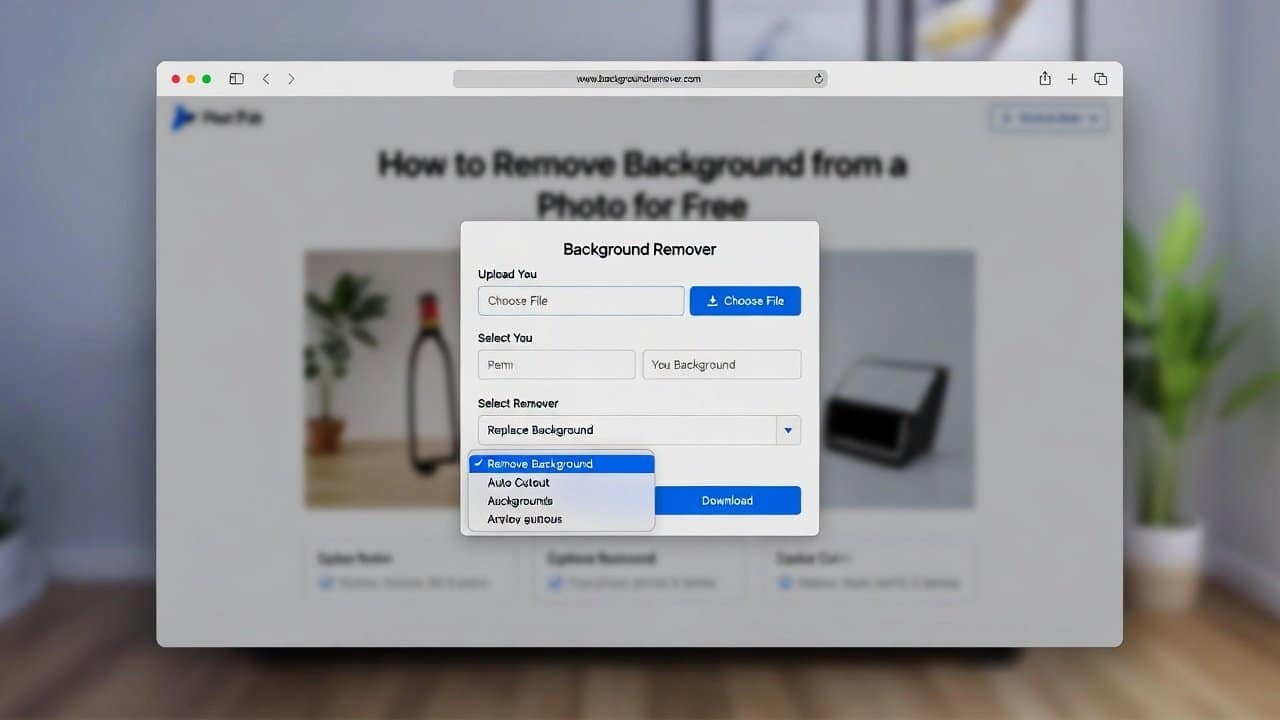
The process of background removal from photographs results in a more professional and cleaner appearance for your images. Background removal proves to be an essential skill for various applications. This includes social media content, product photography, and presentation development. Photo editing requires high-cost tools and software, which sometimes can’t be afforded by users. But with this new technology, there are many free background removal tools that have entered into this market. These tools require simple methods to use, and they give professional-level working capabilities. In this blog, we show you how to remove background from a photo for free. So, let’s get into it.
Use Free Online Tools
Multiple free automatic background removal tools exist in the digital market, which users can access. The three most common options for users to choose are
- Remove.bg
- Canva
- Adobe Express
These tools apply artificial intelligence technology to identify the main subject of an image. They then erase the background within two seconds.
Steps to Remove Background from a Photo
Step 1: Upload Your Photo
- Start by opening one of the tools that we mentioned before.
- Then click the “Upload Image” button.
- Choose your photo from your device.
- It will give better results when users use a clear and well-lit image.
Step 2: Automatic Background Removal
- After this the tool will start processing your image after you upload it.
- The process will complete within a few seconds.
- This process of background removal operates automatically without requiring any human input.
- This makes it ideal for people who are new to the task.
Step 3: Edit the Image
After removing the background, users can make adjustments. The following actions are available that users can do to edit their image after background removal:
- Users can refine the edges of the picture.
- They can adjust both the brightness and contrast of the image.
- Also, they can add shadows or effects to the material.
These tools provide users with the ability to correct minor areas through manual adjustment.
Step 4: Add a New Background (Optional)
Users also have the option to select a background replacement option. It provides users with three background options, which include
- Solid colors
- Gradients
- Custom images.
This tool has practical applications for social media posts, product photography, and artistic design work.
Step 5: Download the Final Image
- Users can download their image after they complete their work to their satisfaction.
- Most tools allow users to save their work in two formats:
- PNG with transparent background
- JPG
- PNG is usually better if you want to use the image in designs.
Tips for Better Results
Tips to achieve better results for this process.
- First, use high-quality images.
- Second, select backgrounds that do not contain excessive visual elements.
- Thirdly, establish suitable lighting conditions.
- Fourthly, select subjects that can be easily recognized.
Conclusion
In conclusion, learning how to remove a background from a photo for free is a valuable skill. Almost everyone that loves clicking pictures or freelancers that work with photo editing or graphic designers has this skill. It is for anyone working with images. Now there are many free background removing tools present in the market that users can use. Tools/software like Remove.bg, Canva, and Adobe Express provide users with fast and simple photo editing abilities. They will enable users to create professional-looking images that maintain complete cost efficiency.














