

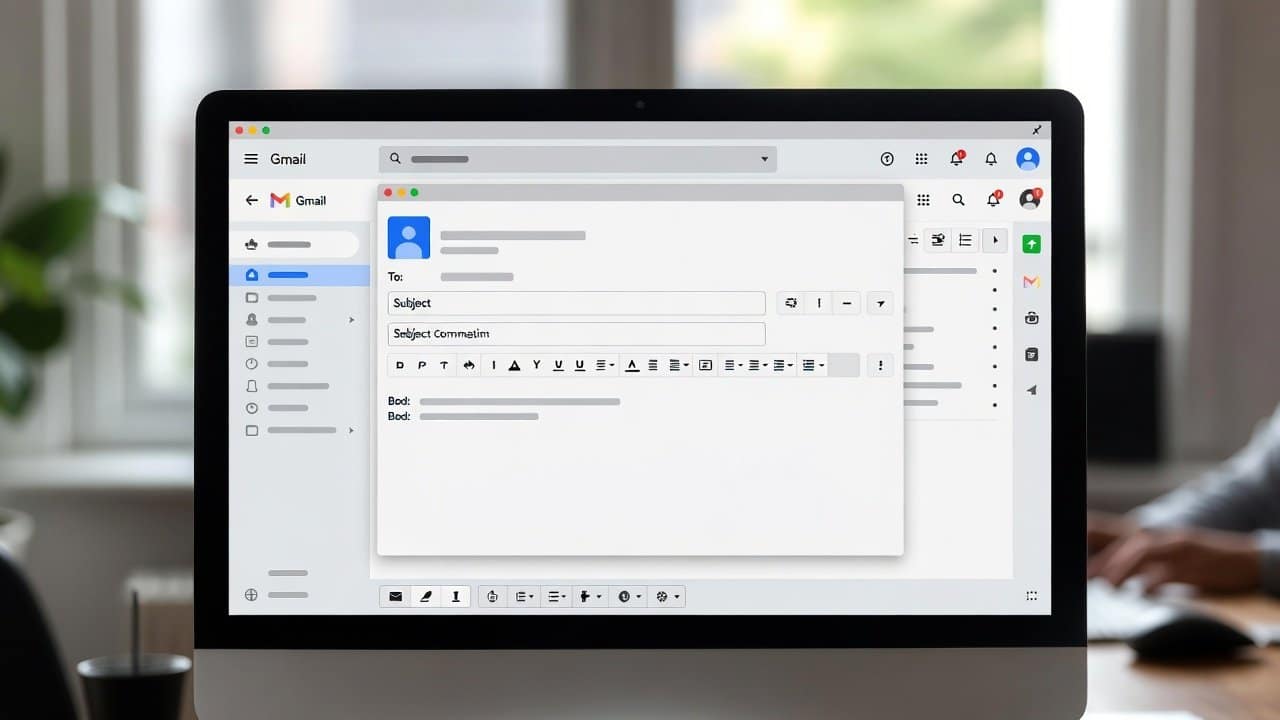
Writing duplicate emails multiple times creates excessive time consumption. It makes people frustrated and waste time in large amounts. Furthermore, their productivity decreases when they send identical messages for business responses, client status updates, and follow-up communications. Therefore, email templates come to the rescue. Email templates provide users with more written messages that they can edit or modify according to their need. In this blog, we will show you how to use email templates in Gmail to save time and increase your work efficiency. So, let’s get into it.
What Are Email Templates?
Email templates are pre-written messages that you can reuse whenever needed. The process of sending emails becomes easier. It is because users can use a saved template to start their message and make necessary modifications. Therefore, this built-in feature of Gmail allows users to create and use templates with simple steps.
Steps to Use Email Templates in Gmail
Step 1: Enable Templates in Gmail
The template feature requires users to first activate its function before they can start using it. Users are required to follow the following steps.
- Open and start Gmail.
- Click on the gear icon.
- Select “See all settings.”
- Then go to the “Advanced” tab.
- After this, find the “Templates” option.
- Click “Enable.”
- Lastly, the user must save all the changes.
The template feature now functions properly for use.
Step 2: Create a Template
Next, you need to create your first template.
- First, click “Compose” to open a new email.
- Then write the message you want to save.
- Click on the three dots (More options).
- Select “Templates”
- Then click on “Save draft as template.”
- After this choose the “Save as new template” option.
Give your template a name so you can find it easily later.
Step 3: Use a Template
Using a template at this step becomes both fast and easy to accomplish. The process involves three steps.
- First, click the “Compose” button.
- Second, click on the three dots.
- Third, select “Templates.”
The user needs to choose his saved template. It will show your message immediately, which you can modify before sending.
Step 4: Edit or Delete Templates
Users can edit or delete their template by following some steps.
To edit:
- First, open a new email window.
- Then insert the template that you want to use.
- Then do all the modifications or editing you want.
- Lastly, save the file again under the same name.
To delete:
- First access the “Templates” section.
- Then choose the “Delete template” option.
- Then select the template that you want to delete.
- Lastly, confirm to delete it.
Best Uses for Email Templates
Email templates show their value in various situations, which include
- Helping users to answer customer service requests.
- Handling job applications.
- Scheduling meeting requests.
- Managing follow-up emails.
These templates enable users to respond fast while maintaining high-quality results.
Tips for Better Templates
To make your templates more effective, follow these tips:
- Always keep your message clear and simple.
- Customize your messages according to your work requirement.
- Use a tone that should sound both friendly and professional.
- Your message length should not exceed its limit.
Conclusion
In conclusion, learning how to use email templates in Gmail is a simple way to boost your productivity. Users can create and save reusable emails. They just need to follow some simple steps, and they will get the best result for their email templates. Templates make work easier and fast. Furthermore, users can generate such emails beforehand and can send them at the appropriate time according to their requirement. Lastly, it will enhance both your speed of work and your professional appearance.














