

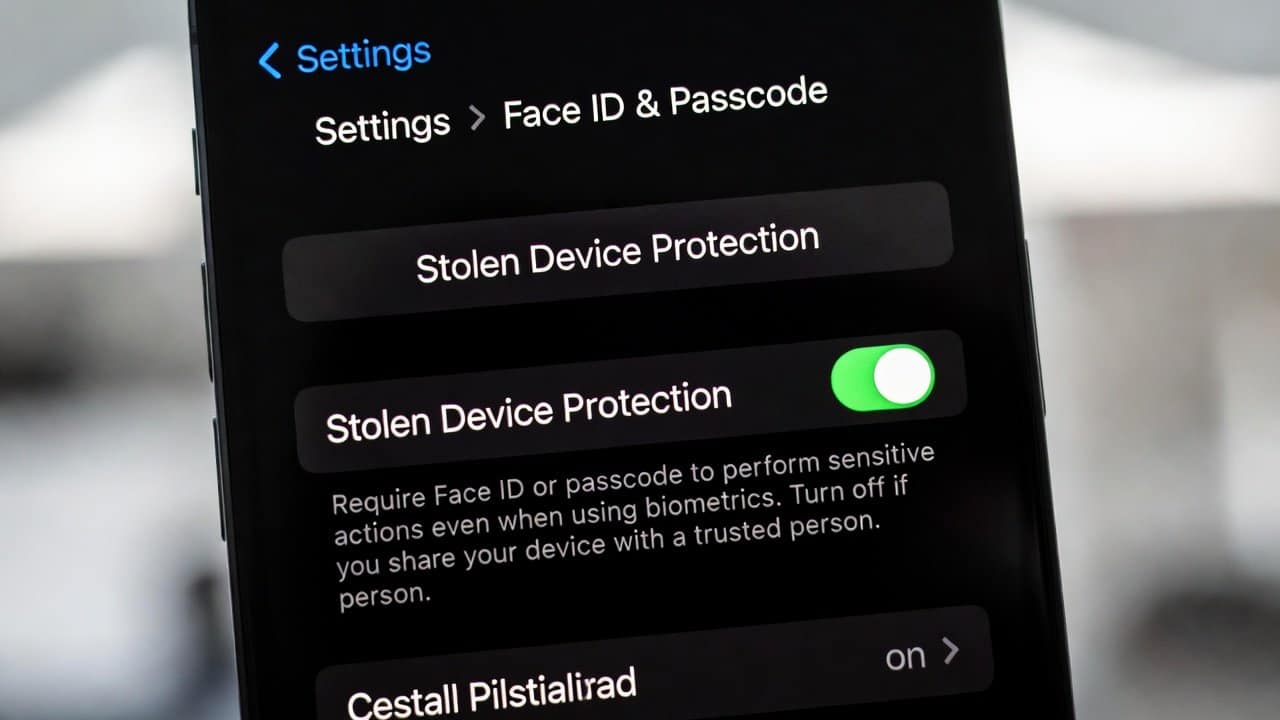
Smartphones store a lot of personal data. This includes photos, messages, banking applications, and passwords. Therefore, smartphones have become an important part of life but also the most confidential item we carry. The information stored in smartphones becomes highly vulnerable when your phone gets stolen. Therefore, Apple created Stolen Device Protection as a strong security solution to address this problem. In this blog, we will teach you to enable Stolen Device Protection on your iPhone through a clear method that protects your data. So, let’s get started.
What Is Stolen Device Protection?
Stolen Device Protection is a feature designed to protect your data if your iPhone is stolen. This system is created to establish additional protection measures. Additionally, it restricts access to confidential system settings. This system requires Face ID or Touch ID verification. It is because it handles critical operations on your mobile. Also, it creates security time delays that affect specific system modifications. It basically happens when the device moves outside its trusted areas.
Why This Feature Is Important
Your personal information receives protection through this system. Your accounts remain secure because nobody can access them without knowing your passcode. Additionally, it stops users from making instant modifications to their security configurations. Furthermore, hackers attempt to change passwords while they disable tracking systems. This tool prevents them from performing those activities. This security system provides a time period that allows users to respond before they implement important system modifications. Lastly, this feature enhances security through improved protection measures.
Requirements Before Enabling
Before you turn on Stolen Device Protection, make sure:
- Your iPhone needs the most recent iOS update to work properly.
- You need to activate Face ID or Touch ID for their proper function.
- Must enable Location Services for the feature to function correctly.
Steps to Enable Stolen Device Protection on iPhone
Step 1: Open Settings
- Start by unlocking your iPhone.
- Then open the Settings app.
- Scroll down and select either Face ID, Passcode, Touch ID, or Passcode.
- It will prompt you to provide your device passcode.
Step 2: Find Stolen Device Protection
- Once you go inside the settings, scroll down until you find the Stolen Device Protection option.
- Then select this option to access the feature’s configuration settings.
Step 3: Turn It On
- Users should then switch on Stolen Device Protection.
- Your iPhone will begin implementing additional security features after you activate the security protection.
How It Works
After users enable this feature, their iPhone will require them to use biometric authentication. It is required every single time whenever users attempt to perform sensitive actions. This feature will create a time delay that prevents you from changing important system settings. Furthermore, it will recognize when users enter a known area, which includes your home and workplace. Lastly, it will enforce more strong security measures when you are outside of approved locations.
Tips for Better Security
To get more benefits out of this feature, follow these tips:
- Most importantly, keep Face ID and Touch ID both active at all times.
- Always use a strong passcode.
- Also, maintain your iPhone with the latest software updates.
- Activate Find My iPhone to enable your device tracking.
Conclusion
In conclusion, learning how to activate stolen device security on an iPhone serves as an important method. It is important for protecting your personal information. It provides security to your device from unauthorized access. This security can be achieved through a few clear steps. Therefore, users should activate this security feature before any security issues emerge. This feature will provide continuous protection for your iPhone throughout the day.














