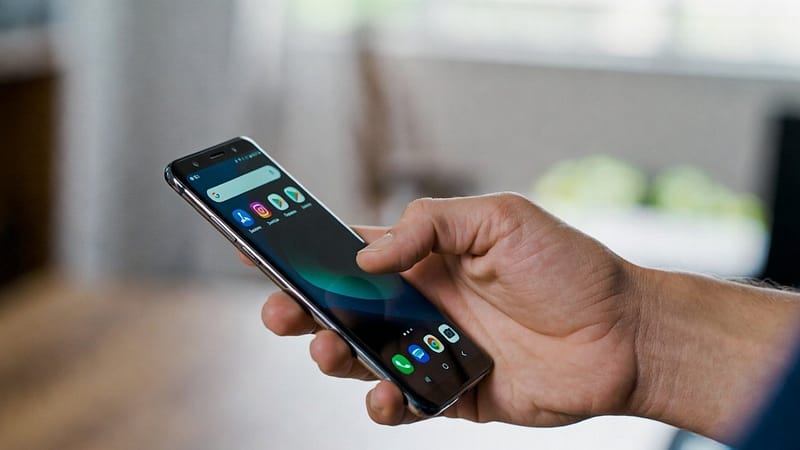


Digital environments today require a lot of protection. Protecting online privacy has become more important than ever in history. Users send messages online to each other. They share media, graphics, important document files, etc. through these messages. But due to the high rate of cybercrimes, the security of standard SMS messages is not reliable. The current SMS standard involves third persons or parties. These parties can easily gain access to users’ content. Therefore, people are choosing secure messaging applications because of this danger. Signal represents one of the top available messaging solutions. In this guide we will provide a complete tutorial on how to use Signal instead of regular SMS. So, let’s get started.
Why Switch from SMS to Signal?
There is one question that will be running in your mind: why should we switch from SMS to Signal? Well, the answer to this question is that:
- First SMS messages exist without encryption. This means they can be read if intercepted.
- Secondly, Signal uses end-to-end encryption, which protects messages from unauthorised access. Only the two people who are chatting can see their messages.
- Thirdly, Signal does not collect your personal information nor monitor your behaviours. That makes it an excellent option for protecting your private information.
- Fourthly, it provides additional capabilities which include voice calls, video calls, and media sharing functions.
- Lastly, Signal provides a secure and current solution which functions better than SMS.
Tutorial on How to Use Signal Instead of Regular SMS
Step 1: Install the Signal App
- First, download Signal from your app store.
- The app can be downloaded by users of both Android and iPhone devices.
Step 2: Register Your Phone Number
- Secondly, Signal requires users’ phone number information to complete the registration process.
- Your number needs to be entered first.
- Then verify it through the code which will be sent to you.
- This establishes a secure link between your account and the device which you are using.
Step 3: Set Signal as Default Messaging App (Android)
Thirdly, the Android operating system allows users to select Signal as their main messaging application. The process requires users to complete the following steps:
- Access the Signal application settings.
- Select the SMS and MMS option.
- Activate the SMS feature.
- Select Signal as your primary text messaging application.
After this all your messages will be delivered through Signal. These messages will be encrypted when the other person uses Signal. Although it will send as regular SMS when they do not.
Step 4: Start Secure Conversations
To send a message:
- Open Signal app.
- Tap the compose button.
- Select a contact.
- Start chatting.
If the contact is on Signal, you will see a lock icon. This means your chat is secure.
Step 5: Use Extra Privacy Features
Signal provides extra features which help users to secure their information better. In the application, the user has the ability to:
- Enable disappearing messages.
- Lock the app with a password or fingerprint.
- Hide message previews.
These features enable you to manage your privacy through additional control options.
Step 6: Make Voice and Video Calls
- Signal offers more than just texting services.
- Users can also make secure voice and video calls.
- It protects all users’ messages through encryption.
- It also guarantees that all your talks will remain confidential.
Conclusion
In conclusion, the process of learning how to use Signal instead of SMS is a very important step to protect online data. This method of messaging is so effective to enhance your privacy. Signal provides users with a secure messaging platform. Further. Furthermore, users can follow it, which requires only basic setup to access its advanced security features. So, if you want safer communication without worrying about your data, then start using Signal.