

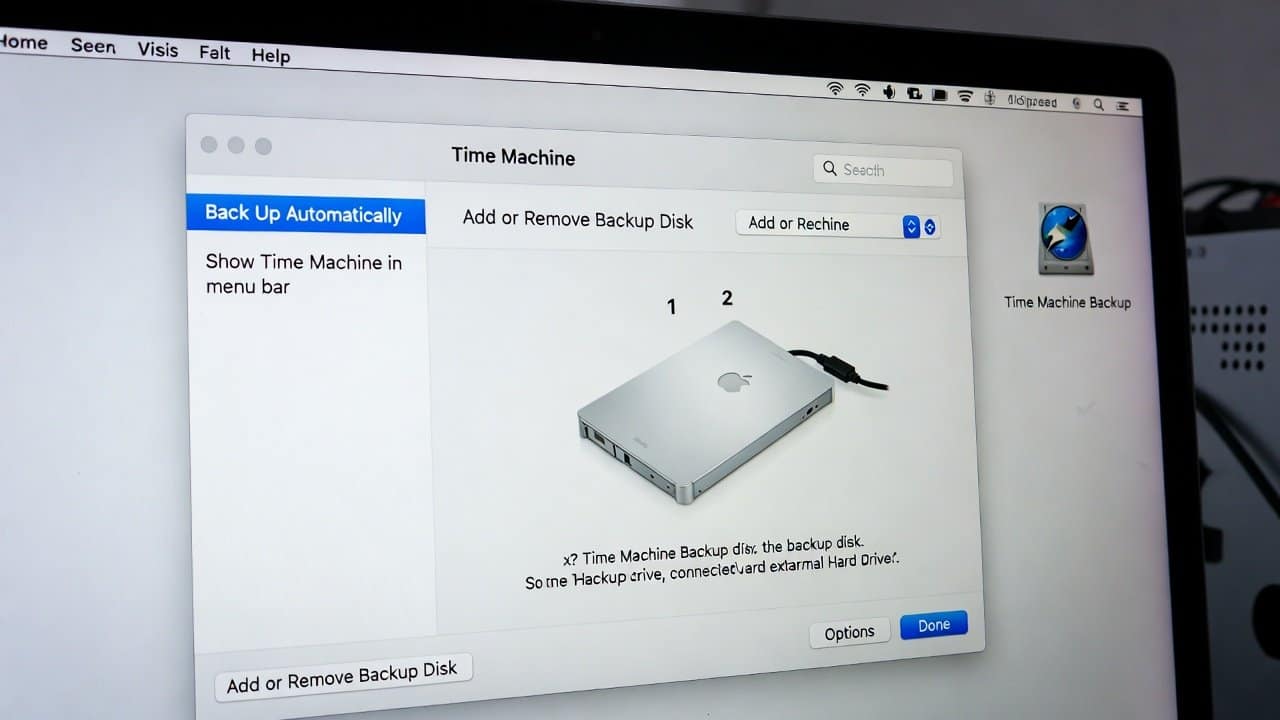
Almost every file and document is digitally stored on our Mac nowadays. These documents and files are highly important for their users. People experience high levels of stress and frustration when they lose their essential documents. This created a sense of anxiety among its users. The system problems and unintentional file removal create a risk. Additionally, people will lose their data, which includes their photos, documents, and work files. This is why an organization’s system must establish their backup procedures at regular intervals. Apple offers an easy solution through Time Machine for Mac users. In this guide, we will show you the steps to set up Time Machine backup on your Mac in a simple and effective method. So, let’s get into it.
What Is a Time Machine?
Time Machine is a built-in backup feature in Mac. Time Machine creates automatic file copies that users can use for future file restoration. Further, it creates backup copies of users’ data every hour, every day, and every week. Users’ data remains protected. It is because the system operates without requiring your active participation.
Benefits of Using a Time Machine
- Firstly, the Time Machine backup system protects your information.
- Secondly, it enables users to recover lost data when their Mac experiences a crash or file deletion.
- Thirdly, it operates continuously after the user completes the initial setup.
- Fourthly, it enables users to complete tasks through an easy interface.
- Fifthly, it also enables new users to complete their setup process within a short time.
- Lastly, it ensures users obtain peace of mind because their files remain protected.
What You Need Before Starting?
Before the user begins setting up Time Machine, they need an external storage device. The storage devices can:
- An external hard drive
- A USB drive
- A network storage device
But make sure that the storage device must have sufficient capacity to accommodate all your data.
Steps to Set Up Time Machine Backup on Mac
The following given steps will help users to set up Time Machine backup on their Mac device.
Step 1: Connect Your External Drive
- Start the process by connecting the external storage device to your Mac system.
- The Time Machine backup system will show up as an automatic option for your Mac.
- This will show after you connect the device.
- Choose the option “Use as Backup Disk.” ”.
- The installation process requires users to complete the manual setup procedure.
Step 2: Open Time Machine Settings
- To set it up manually:
- Click the Apple menu.
- Go to System Settings or System Preferences.
- Select General Click Time Machine
- The backup management options will appear to you in this location.
Step 3: Select Backup Disk
- Next, click “Add Backup Disk” or “Select MacDisk. ”.
- Choose the external drive from the available options.
- It allows you to activate encryption, which provides additional protection.
- Your data remains secure through password protection.
Step 4: Turn On Automatic Backups
- Activate Time Machine after you choose the disk for your backup.
- It will begin automatic file backup after you select the first backup option.
- The first backup process will require additional time to complete.
- It is because your data presents a specific size.
- After this it will execute background backups.
Step 5: Monitor Backup Progress
- Users can check the backup status anytime.
- The Time Machine icon located in the menu bar displays current progress and system details.
- It enables users to verify all components function at their intended capacity.
How to Restore Files?
You can easily restore your files through Time Machine. The process requires you to perform these steps:
- Access the directory that contained your lost file.
- Select the Time Machine icon.
- Access Time Machine.
- Examine earlier backup records.
- Choose the document and press the “Restore” button.
The system provides users with the ability to restore their missing data and their previous file versions.
Conclusion
In conclusion, learning how to create a Time Machine backup on Mac systems provides a useful method to protect your data. Setting a time machine backup does not require such hard technical knowledge. Just a few simple steps will be highly helpful in this process. Time machine backup offers clear installation and creates automatic backups. It enables users to protect your files with minimal work. So it is important to use a Time Machine backup feature if you want to protect your important information.














