

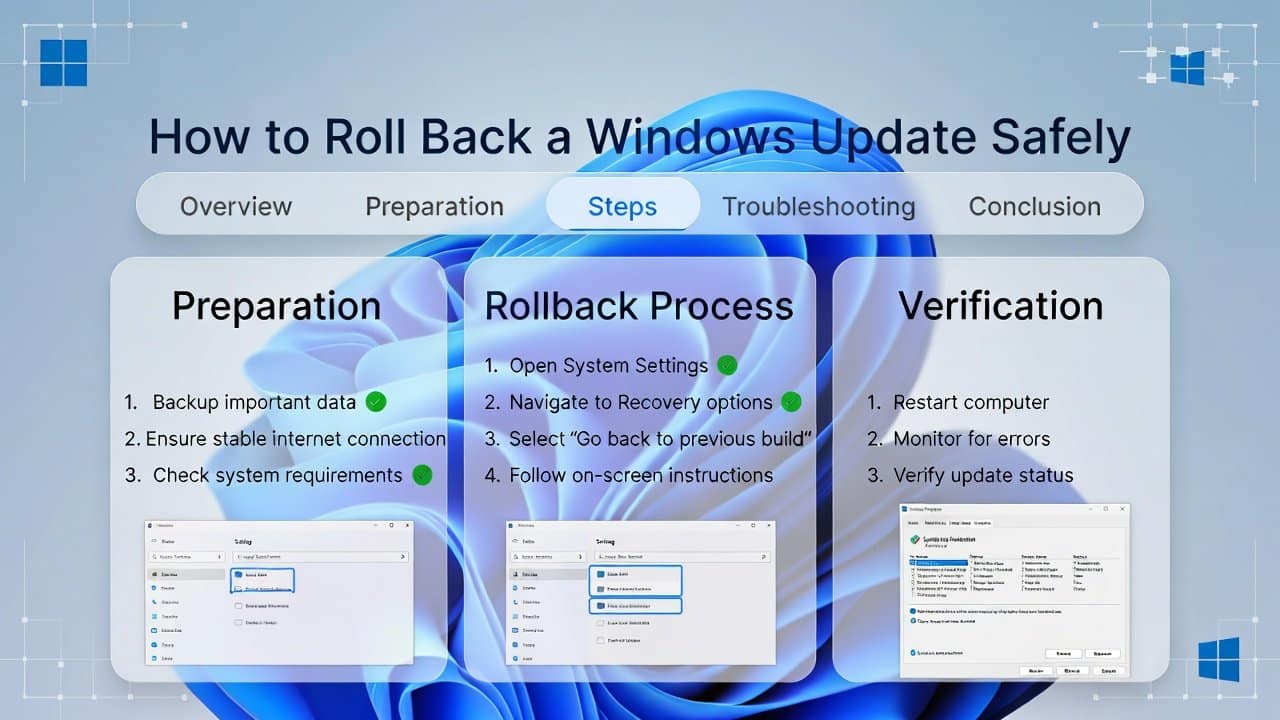
Windows have always been an important aspect of the digital environment. Therefore, Windows updates serve an important function too. It is because they enhance system security and resolve operational faults. But even this system can experience issues. A lot of workload and not updating it at the right time can also cause issues. But the main issue occurs when an update fails to deliver its intended solutions on time. Because of this, the window system will show decreased speed, software malfunctions and problems with software working. This all will happen after you apply the update. However, the only solution to this problem is the rollback system. In this blog, we will share some clear yet effective methods to roll back a window update safely. So, let’s get into it.
Check If Rollback Option Is Available
Before starting the process, check whether the rollback option is available in your window system or not. Windows generally retains earlier system versions for a maximum period of 10 days. Users can use this time to restore the earlier system version.
- Open Settings
- Go to System
- Click on Recovery
If the “Go back” option is available, you can proceed.
Methods to Roll Back a Window Update
The following are some methods that will help you to roll back a window update safely.
Method 1: Use the “Go Back” Feature
The built-in rollback function provides the simplest method to reverse an update.
Follow these steps if you want to use that simple method:
- Open Settings
- Go to System
- Then go to Recovery.
- Click “Go back” under Recovery options.
- Choose a reason for rollback
By following these instructions the window system will restart and restore the previous version. This method protects security and keeps users’ personal files safe.
Method 2: Uninstall Recent Updates
If the “Go Back” option is not present yet, the window system will help you in achieving the rollback function.
The following steps will help you in using this method:
- Start by opening the Settings menu.
- Access Windows Update through the menu.
- Select “Update history” from the options.
- Then select “Uninstall updates” from the menu. T
- Choose the latest update which is causing problems.
- Lastly, click the “Uninstall” button.
The method enables users to delete minor updates which include security patches.
Method 3: Use System Restore
Another best method to use is System Restore. The feature enables users to restore the window system to a previous functioning state.
This process requires three steps to be done:
- Search System Restore.
- Then click on Create a restore point.
- Select System Restore.
The user needs to select a restoration point which existed before the software update. This method will restore all system configurations while maintaining user data intact.
Tips for a Safe Rollback
To avoid problems, follow these important tips:
- Backup your important files before starting this process.
- Check device battery status or connect their device to power.
- The rollback process requires uninterrupted execution until completion.
- Users must record their essential configuration details.
Conclusion
In conclusion, the process of learning how to roll back Windows updates safely provides users with a method. These methods provide simple steps that will help their users to prevent system problems. The three methods include the “Go back” feature, uninstalling updates and System Restore. Additionally, they show users how to effectively solve their window problems. While dealing with this problem, data protection also becomes important. So it requires users to use safety tips while they work. The correct method enables you to resolve update issues and bring your system back to its previous performance.














