

Android smartphones have multiple hidden features that most users do not know about. Developer options are one of those hidden features of Android. Developer Options serves as one of the most powerful functions of the Android system. These features give users access to advanced tools. These tools can improve performance, help with testing, and customize their device. The feature remains hidden to most users because they do not understand how to access it. Therefore, in this blog, we will share many things related to these features and also give some steps to enable developer options on Android. So, let’s get into it.
What Are Developer Options?
Before learning about how to enable developer options, first let’s get to what developer options are. The Android operating system provides Developer Options as a secret menu. This secret menu only exists to be used by developers only. But it can provide benefits to regular users who want to use it. Additionally, this menu enables users to manage system functions while enabling debugging, modifying animations, and protecting device performance. These features provide strong capabilities but require users to handle them with care.
Benefits of Enabling Developer Options
The following are the few benefits of enabling developer options in Android.
- It can increase your phone speed by decreasing animation effects.
- Users can enable USB debugging features that allow them to perform advanced operational tasks.
- Users can track system performance through this feature.
- This feature allows users to control background processes that will operate on their devices.
Step-by-Step Guide to Enable Developer Options
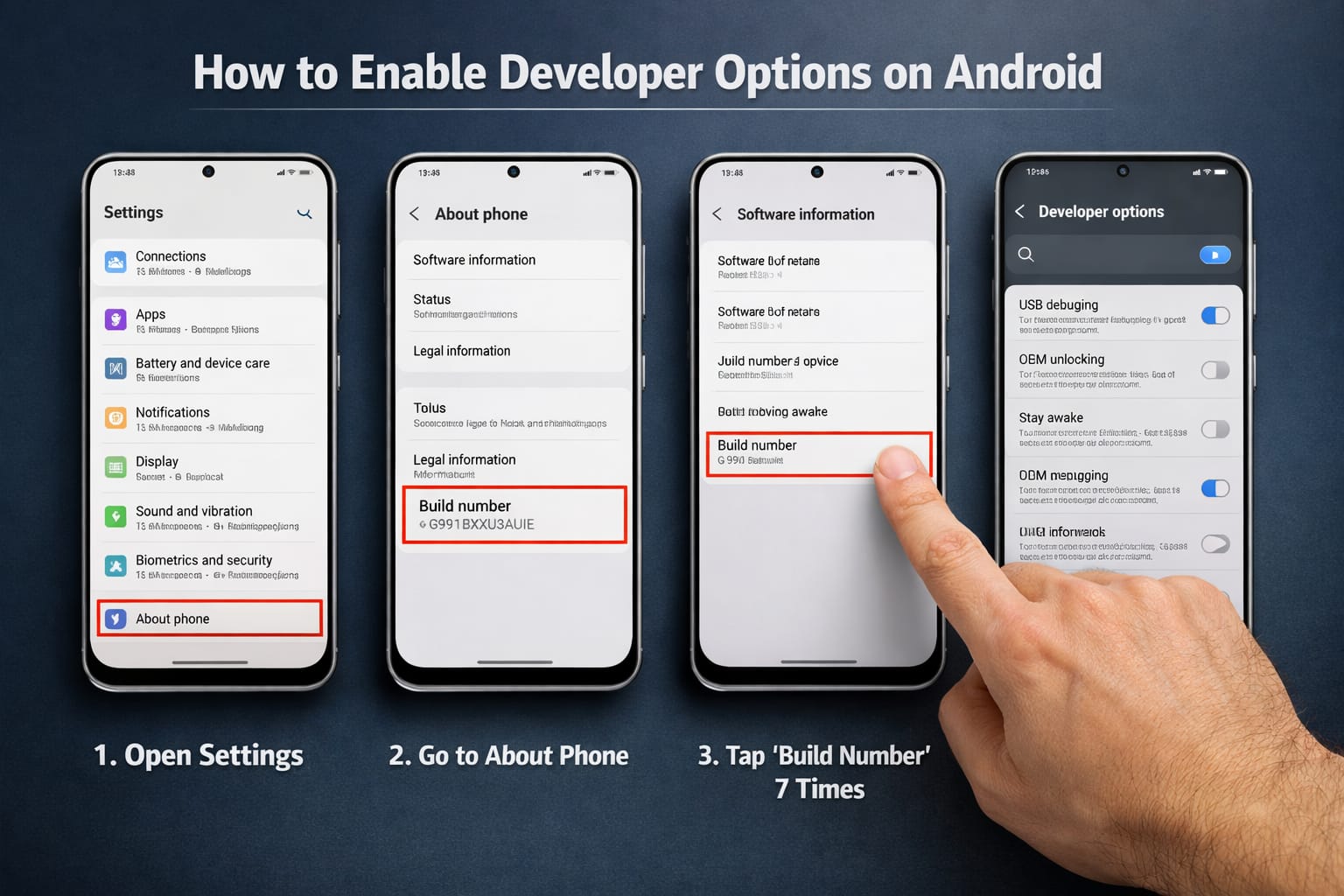
The following is the step-by-step guide that will help you in enabling developer options.
- First, open the Settings application on an Android device.
- Second, scroll down the screen and select the option “About Phone.”
- Third, search for the option given as “Build Number.”
- Fourth, tap on “Build Number” seven times without stopping.
- After this the system will request you to provide your device password or PIN code.
- Then your Android system will display a message that confirms your developer status.
- After you finish this process, Developer Options will become active on your device.
Useful Features
Develop options and provide these following given features to the first-tier users so that they can use them to boost their performance.
1. Reduce Animation Scale
- The phone shows animations as smooth, but they create performance issues.
- Users can set animation scales to 0.5x or turn them off to make their device faster.
2. Enable USB Debugging
- This option allows users’ phones to connect with a computer for advanced tasks like file transfer and app testing.
3. Limit Background Processes
- Users can control how many apps run in the background.
- This process helps to maintain system performance and extend battery lifespan.
4. Show Touches
- The feature shows all touch points that a user makes on their screen.
- Its function shows touch points that help users create tutorials and conduct demonstrations.
Conclusion
In conclusion, by following the step-by-step guide, users can easily enable developer options on Android. These methods enable users to access advanced features on their mobile devices. This process lets users access advanced settings through clear steps. It will boost their device performance and provide users with enhanced control. But keep in mind that these options should be used with caution at all times. The basic features of animation control should be tested first before you start using advanced options. With these options users can improve their Android experience with no potential dangers.














