

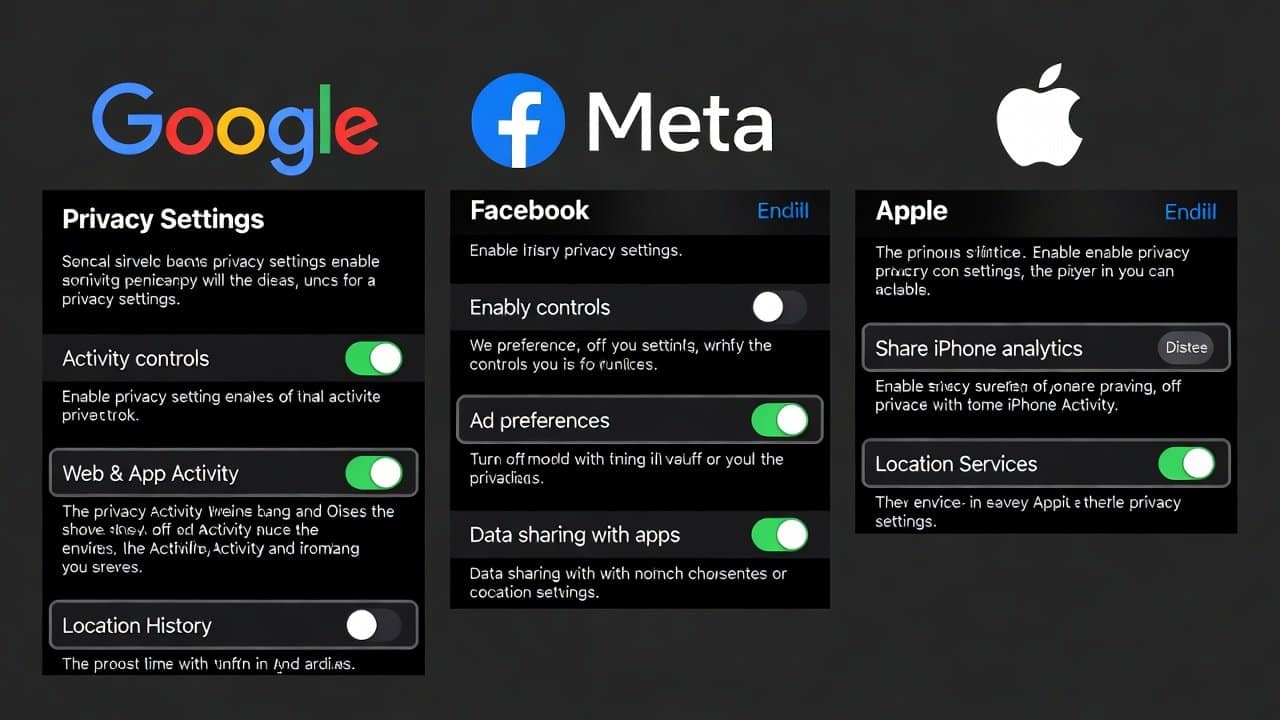
Your data serves as your most valuable asset in the current digital environment. Companies use it to create personalized advertisements and enhance their services. Unfortunately, these companies occasionally share your data with third parties. But you guys don’t have to worry. Because you have complete authority to determine your personal privacy boundaries. This blog provides the best privacy settings for Google, Facebook & Apple. These settings enable you to protect your personal data. So, let’s start!
Best Privacy Settings
1. Securing Your Google Account
- Open your Google Account settings and proceed to the section named Data Privacy.
- Deactivate Web App Activity tracking through their Google account settings to prevent Google from storing your search and browsing activities.
- Visit Location History to disable the feature that allows Google to track your current location.
- Also examine all personal info and remove all unneeded information to decrease Google data collection.
2. Protecting Your Facebook Privacy
- The Facebook settings for your account can be accessed through “Privacy” after you open your Facebook settings.
- Set your profile to “Friends Only” or “Only Me,” which restricts access to your posts and photos and personal information.
- You should restrict “How People Find and Contact You” by selecting which users can search for your profile.
- Disable ad personalization by going to the “Ads” section.
- Review app permissions of your current apps and delete access from those applications that you no longer use.
- The “Off-Facebook Activity” feature allows you to view and delete information that websites outside of Facebook share with you.
3. Enhancing Privacy on Apple Devices
- Go to Settings and then select Privacy and Security on your iPhone or iPad.
- Select “Location Services” and then select “Never” for applications that do not require your location.
- Disable “Allow Apps to Request to Track” under “Tracking” settings to prevent applications from tracking your activities across different apps.
- Disable the “Allow Siri When Locked” option in the settings to stop Siri from collecting voice data.
- Use “Sign in with Apple” as your login method for applications instead of providing your email address.
Conclusion
In conclusion, with the help of these security settings, you can easily establish privacy protection on Google, Facebook, and Apple platforms. Furthermore, you should regularly check your settings because these platforms continue to make changes in them. Your online safety improves when you take these security measures. So, start applying these settings in your digital accounts and save them.














