

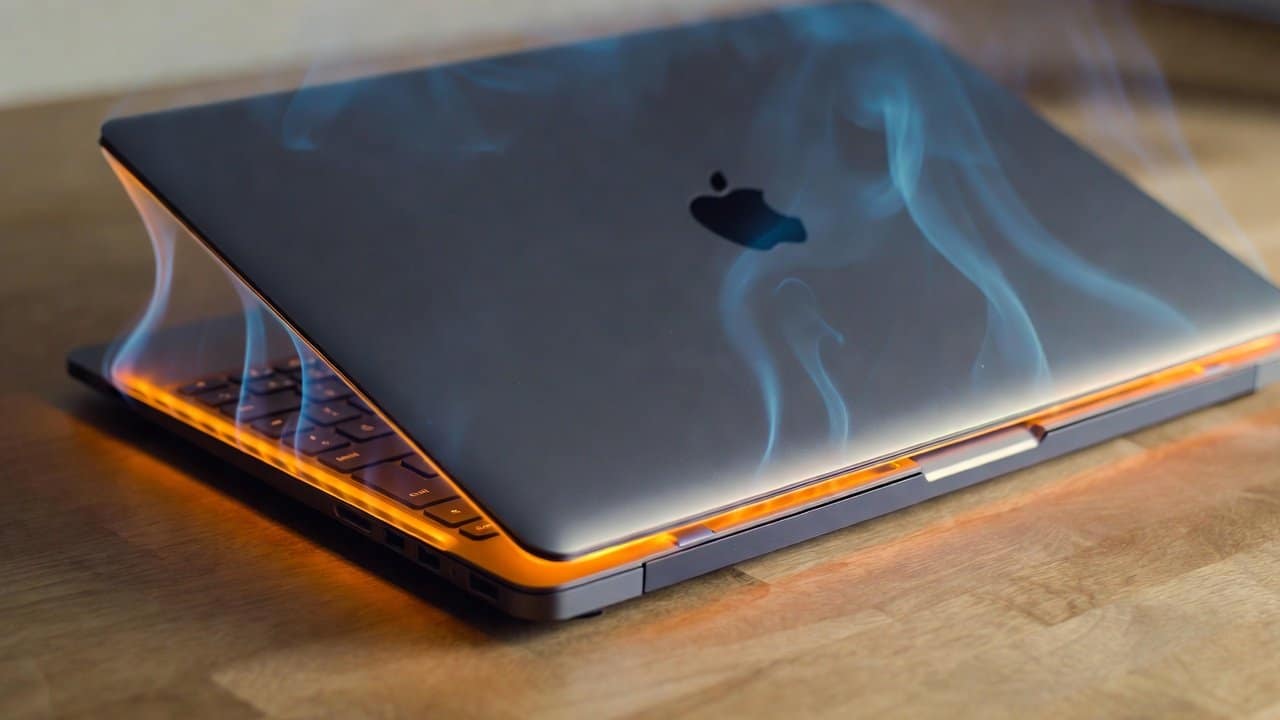
Numerous users experience the MacBook overheating problem, which causes their devices to become too hot and results in their laptops burning users’ laps. This overheating can be caused by many reasons. But every problem has its solutions too. This overheating problem can be solved through clear solutions that deliver successful results. In this blog, we will examine the causes of MacBook overheating and provide users with effective methods to keep their devices at optimal temperatures. So, let’s dive in!
Why Do MacBooks Overheat?
Before looking for solutions, let’s understand what causes this problem. MacBooks generate heat when performing demanding tasks, such as video editing and gaming. The problem becomes worse because of multiple factors.
- The ducts become blocked because dust particles accumulate in them, which prevents normal air movement through the system.
- The processor is stressed when users operate their devices continuously without taking breaks
- The system generates excessive heat because outdated software and malfunctioning applications cause this condition.
- Environmental factors, such as using your MacBook on a soft surface like a bed, trap heat.
- The system experiences problems because of battery malfunctions and hardware defects.
- It allows you to identify the sources of overheating.
Effective Fixes for MacBook Overheating
Implementing these steps will result in noticeable changes to your system. Start with basic fixes before moving to advanced solutions.
1. Clean the Vents and Fans
- Your MacBook’s vents need regular cleaning because dust accumulation is the main cause of overheating.
- Shut down your device and remove its power cord before starting the cleaning process.
- The keyboard and ports should be cleaned with compressed air to remove dust.
- Avoid using a vacuum because it can damage the electronic components.
- Clean your MacBook every three months, or more frequently in dusty environments.
- The process requires only one basic action, resulting in significant reductions in heat accumulation.
2. Use a Cooling Pad
- A cooling pad for your MacBook adds extra fans, improving cooling performance.
- You should position the cooling pad beneath your MacBook when using it for extended periods.
- Look for a device with adjustable fan controls and USB ports for flexible access.
- The product stops your body from feeling excessive temperatures.
- The product requires a high-quality buy to provide extended pain relief.
3. Optimize Your Usage Habits
- Adjust your MacBook usage habits to prevent overheating.
- Your processor uses less power when you avoid running multiple applications at once.
- Closing unnecessary programs reduces the processing power required.
- Take breaks during extended work periods.
- The Activity Monitor tool helps you find applications that consume excessive system resources.
- You should turn off those applications to allow your MacBook to cool down and run more efficiently.
4. Update Software and Reset SMC
- Keep your system regularly updated because outdated macOS versions can cause overheating.
- Install the latest version through Software Update, which you can find in System Settings > General.
- The System Management Controller (SMC) resets both power and thermal system operations.
- Intel Mac users need to shut down their devices before pressing Shift + Control + Option + Power for 10 seconds.
- The normal restart process handles M1- and M2-based Macs.
5. Check for Hardware Issues
- If other fixes don’t work, you should inspect your system for hardware problems that may be causing overheating.
- The system will overheat if either the fan or the battery system fails completely.
- You need to go to an Apple Store or an authorized service provider to get this problem solved.
- You need to check the health of your MacBook’s battery.
- You should replace the battery when it shows signs of swelling or when it reaches its expiration date.
- Early detection prevents bigger issues.
Conclusion
In conclusion, MacBook overheating problems don’t have to disrupt your experience with the device. The device will function better after you identify the problems and implement the recommended solutions. Your MacBook will perform better when you implement these solutions. So, if your MacBook shows any signs of overheating, do not ignore it, but apply these solutions to prevent further damage to your MacBook.














