

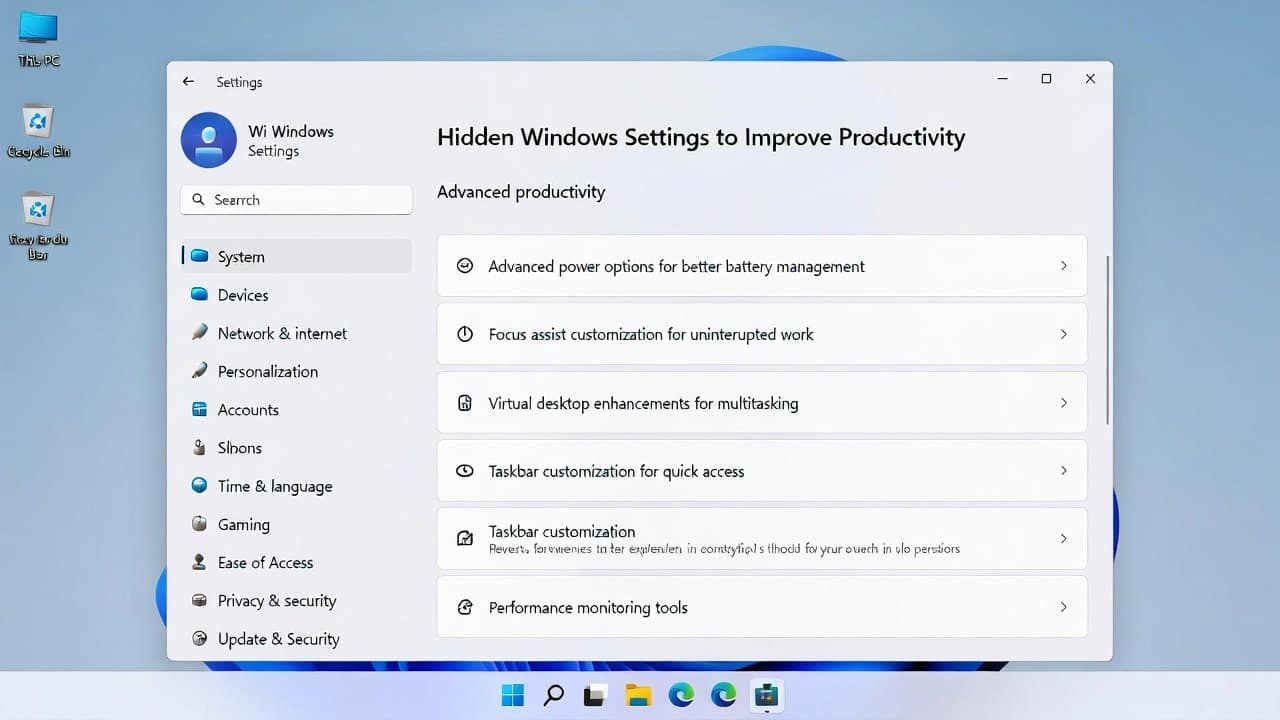
Windows users who work with their machines throughout the day spend more than 3 hours on activities such as email, web browsing, and document creation. The Windows operating system provides the ability to optimize work processes through multiple settings that remain hidden from users. These time-saving features that people do not know about decrease interruptions while increasing their ability to concentrate. Therefore, this blog will reveal some hidden Windows settings that users can use to enhance their work performance. So, get ready to transform your personal computer.
Hidden Windows Settings
Here are the best hidden window settings that you must turn on for better productivity.
1. Focus Assist to Block Distractions
- This work mode requires users to turn on focus assist, which mutes all incoming notifications.
- Navigate through Settings to select “System” before users can access “Focus assist.”
- The setting needs to be configured to prevent all notifications from both applications and contacts.
- It enables users to create their own rules to apply during fixed times or specific activities.
- The system helps you maintain focus by preventing distractions.
- It prevents interruptions by blocking social media platforms and email notifications.
2. Virtual Desktops for Organization
- Users can create multiple desktops to keep their professional work separate from their personal activities.
- Press Windows key + Tab to open Task View.
- Then click “New desktop” to create an additional desktop.
- It allows users to switch between desktops by using keyboard shortcuts.
- It also helps users manage their workspace effectively.
- This system helps users manage their workspace by reducing visual distractions.
3. Night Light to Reduce Eye Stress
- The night light feature lets users adjust screen colors for an optimal viewing experience.
- Go to Settings, then select System, then Display.
- Activate Night Light, which they need to use to create their Night Light schedule.
- The system processes colors to create warmer shades, which it uses during nighttime operational periods.
- It provides a solution that helps users who work on computers for long periods reduce eye strain.
4. Clipboard History for Easy Copying
- Users can activate the clipboard history to begin keeping their copied content.
- Press the Windows and V keys together to access the clipboard.
- The program stores text, image, and web link files that users can reuse later.
- This feature allows users to complete their work more efficiently by reducing the need to paste information repeatedly.
- Your Microsoft account enables document sharing across devices through its synchronization capabilities.
- Users can delete their stored history at any time to protect their personal information.
5. Power Settings for Performance Boost
- Users can create personal power plans that improve their battery life or system performance.
- Open the Settings menu and select System to find Power and sleep settings.
- Users can develop a personalized power plan that includes their desired performance settings.
- Set your work time limits so your system remains active throughout their working period.
- The system provides energy consumption management, enabling continuous operation throughout the day.
6. File Explorer Customizations
- This hidden feature of the file explorer enhances users’ file management capabilities.
- Open File Explorer and then access the View tab.
- It allows users to activate both file name extensions and the hidden items feature.
- Users can create quick-access favorites to help guide their devices.
- The process improves the efficiency of file organization tasks.
7. Task Manager Shortcuts
- Users can use the task manager to check the running processes on their system.
- Open Task Manager via the direct shortcut by pressing Ctrl+Shift+Esc.
- The program enables users to close unresponsive applications while they observe system resource consumption.
- It restores system performance at the moment of application.
- The system maintains high performance through these adjustments, enabling you to operate your computer.
Conclusion
In conclusion, the hidden Windows settings will greatly affect your ability to work. The systems provide users with three essential benefits. These benefits include control over their tasks, better organization, and health advantages that simplify their computing experience. You can try these settings and get the best working system. So, open your window settings now and adjust them to increase your productivity.














