

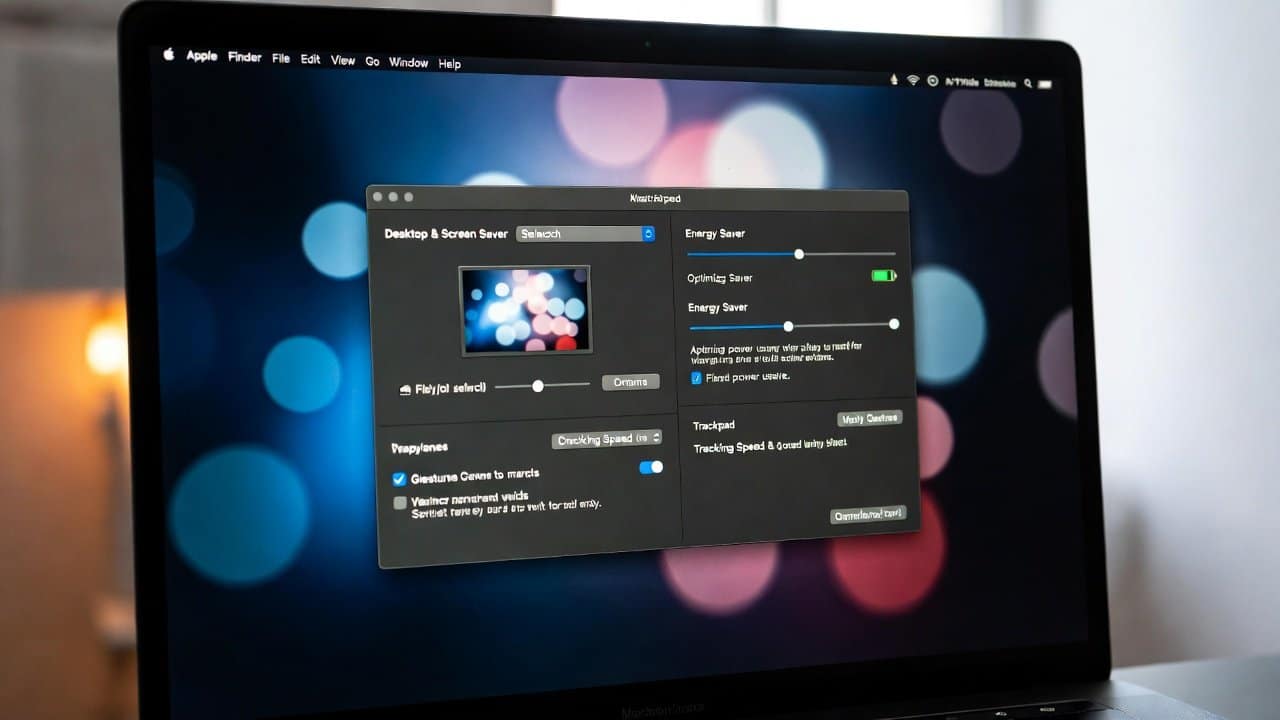
In this fast-paced world of technology, people use their Mac computers as essential equipment for their work activities and creative projects. Users experience productivity interruptions due to two major issues with their devices. The first is slow speeds, and the second is limited operating time. Users can optimize macOS settings for free, improving system performance and increasing battery life. Your device becomes more powerful through basic system changes, which enable it to handle your workload demands. This blog will provide the best macOS settings that help you to achieve faster performance and extended battery life for your device. So, let’s get started!
Optimization for Speed
- Open System Settings, then go to the Energy Saver section, and move the slider to decrease the display shut-off time to free system resources.
- Disable all unnecessary visual effects in the Accessibility Display section by selecting the “Reduce motion” option.
- This reduces system animations that can cause performance issues.
- In System Settings, go to General, then Login Items.
- This allows users to control startup programs by deleting unnecessary applications, thereby improving system startup speed.
- Clear cache files using internal system tools or external applications, as excessive cache can degrade system performance.
Extending Battery Life
- The Energy Saver mode offers a Battery setting that saves power by dimming the screen and slowing down processes when the device is not connected to power.
- Disable Bluetooth and Wi-Fi by selecting their respective icons in the menu bar when these features are not required.
- Enable background app refresh control in System Settings, then General, then Software Update, then click Advanced to stop apps from using power unnecessarily.
- Moreover, save energy by manually controlling display brightness or selecting the auto-brightness feature in Display settings.
- Your battery life improves with these modifications, which work best for travel and extended work periods.
Balancing Speed and Battery Life
- The best way to achieve a balance between speed and battery life requires users to carefully select their settings.
- The battery settings include an “Optimized Battery Charging” feature.
- It learns your device’s charging patterns to extend your battery life.
- Users can monitor their system activity in Activity Monitor, located in Applications, and in Utilities.
- It is used to detect and terminate processes that use excessive system resources.
- Enable Low Power Mode to improve battery life during demanding tasks.
- The system provides instant performance enhancements with very low energy consumption.
- The system will achieve optimal operational capacity through these changes.
Conclusion
In conclusion, optimizing macOS settings for maximum speed and power efficiency enables you to achieve peak performance on your Mac. Furthermore, your Mac system no longer requires you to endure performance drops and battery shortages. The device will perform better if you implement these recommendations starting today. Lastly, keep in mind that your Mac requires regular maintenance, so you must check these settings at scheduled intervals.














