The process of handling passwords becomes more challenging now. It is because multiple online accounts need to be secured. Every online account needs protection, and this protection is given by a password. However, the task of remembering different and strong passwords throughout all online accounts is very difficult. Therefore, Apple has developed iCloud Keychain as an integrated solution for this problem. In this blog, we will show you the steps to install iCloud Keychain on your iPhone using a clear method. This feature helps you store and manage your passwords securely. So, let’s get started.
What Is an iCloud Keychain?
iCloud Keychain serves as the built-in password manager for Apple users. It provides secure storage for users’ passwords, credit card information, and Wi-Fi network information. Also, it automatically completes users’ login information at required times. Lastly, this feature helps users save time while it enhances their online browsing experience.
Steps to Set Up iCloud Keychain on iPhone
The following steps will help you in setting up iCloud Keychain on your iPhone.
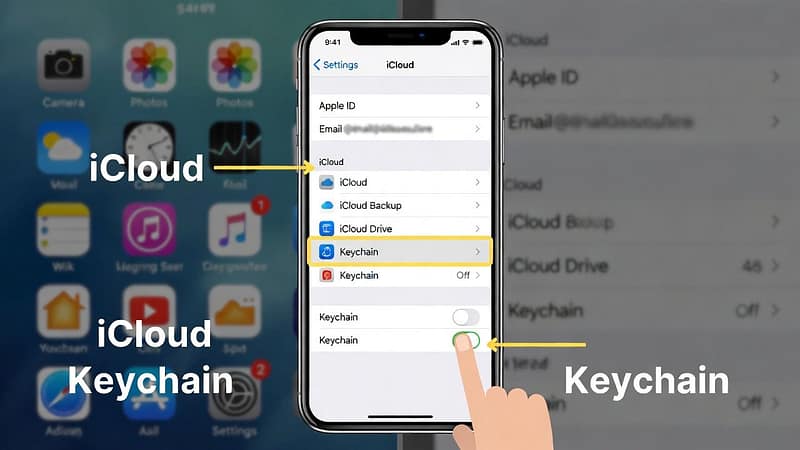
Step 1: Turn On iCloud Keychain
- Firstly, activate iCloud Keychain on your iPhone.
- Access the Settings application.
- Then select your Apple ID, which appears at the top of the screen.
- Select the “iCloud” option.
- Then move and select “Passwords & Keychain” from the available options.
- Activate the “Sync this iPhone” feature.
- The system will begin to save and synchronize passwords after the user activates this function.
Step 2: Set Up Security Verification
- Apple requires users to complete identity verification processes for added security measures.
- The process requires you to follow the following steps:
- Enter your device passcode.
- Use Face ID or Touch ID
- Verifying through another Apple device
- It guarantees that only users possess access rights to their saved information.
Step 3: Save Passwords Automatically
- After you enable iCloud Keychain, your iPhone will start prompting you to save passwords for app and website logins.
- Select the “Save Password” option when it appears.
- All your login information will be stored in your keychain.
Step 4: View and Manage Saved Passwords
- Users can access their saved passwords at any time through simple methods.
- Open Settings
- Tap “Passwords”
- Authenticate your identity through Face ID, Touch ID, or your passcode.
- It allows users to view and edit their saved passwords while also providing the option to delete them.
- Also, it helps users maintain organization while they update their outdated information.
Step 5: Use Strong Password Suggestions
- iCloud Keychain can also create strong passwords for you.
- The iPhone will suggest a secure password when you sign up for a new account.
- Users can accept it and save it instantly.
- It increases your account security through its automatic functions.
Tips for Better Security
Follow these tips for better security function:
- Enable two-factor authentication (2FA) for system access.
- Create passwords that are both strong and distinct for each account.
- Check stored passwords at regular intervals.
- Install the latest software updates for your iPhone.
Conclusion
In conclusion, the process to set up iCloud Keychain on an iPhone is a smart step toward better security. The process of password management requires simple steps. You just have to follow these steps, and you will be able to set up an iCloud Keychain on your iPhone. It will enable users to store and protect their passwords. With the help of iCloud Keychain, you will become safer and more organized.