Online ads provide useful benefits to users. But there is a thing that their excessive personalization leads to negative experiences. Companies track your browsing habits, search history, and app usage. And then they use this data to show ads they think you’ll like. This creates a little panic among users as their personal data is being tracked down by companies. This creates a major concern related to privacy. Therefore, people who want to protect their privacy should disable ad personalization. It is because it provides better results for their advertising needs. This blog provides a quick and safe method to disable ad personalization on Google and Facebook. So, let’s get started.
Benefits of Disabling Ad Personalization
The following are the benefits of disabling ad personalization.
- First, you gain better control of your personal information.
- Second, you experience reduced privacy violations because advertisers will show you fewer targeted ads.
- Thirdly, the online environment becomes safer for you.
- Fourthly, your online activities receive lower tracking.
- Lastly, users will still see advertisements after this action, but it will decrease the amount of personal information.
How to Disable Ad Personalization on Google
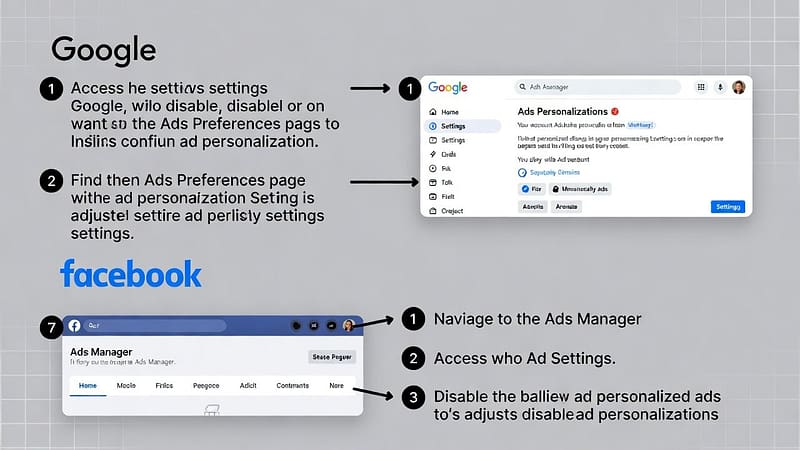
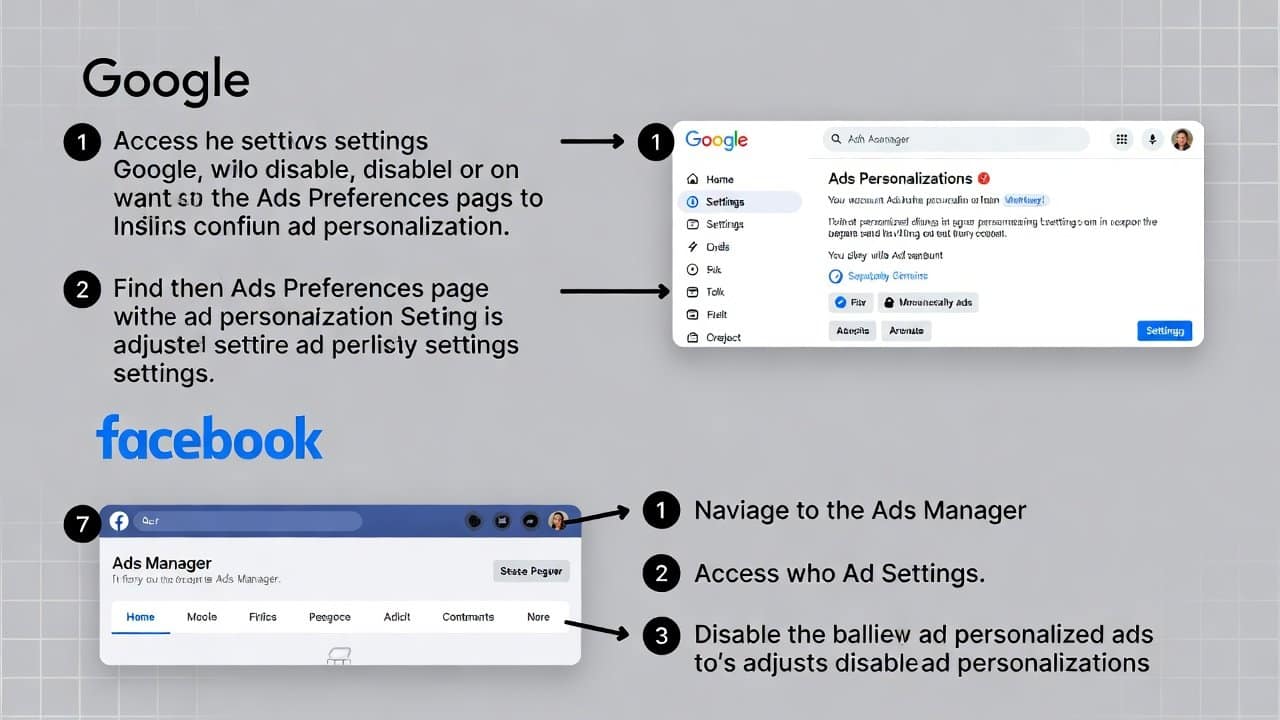
Google uses information from your search history, YouTube viewing patterns, and your app usage. It uses this information to create personalized advertisements for you. To disable this feature, follow these steps.
- Go and access the Data & Privacy section.
- Then go to the Ad settings section.
- Select the Ad Personalization option by scrolling down.
- Switch the button to the Off position.
- Google requires you to verify your identity.
- Click Turn off.
Google will stop displaying personalized ads based on your browsing history. But keep in mind that you will still receive ads that match your general interests.
How to Disable Ad Personalization on Facebook
Facebook uses your browsing history to create customized advertisements for you. To turn off this function, you need to follow these steps.
- Open Facebook.
- Proceed to Settings.
- Then to Privacy.
- Then select Settings.
- The left-hand menu of the page allows you to choose Ads.
- Select Ad Settings from the menu.
- Then disable these three settings.
- Disable “About You” Data
- Block Specific Advertisers
- Disable Off-Facebook Activity
These changes will prevent Facebook from using your browsing history to create targeted advertising for you. Yet you will continue to receive non-targeted advertisements.
Extra Tips for Reducing Personalized Ads
Additional tips include:
- Clear cookies and browsing history on a regular basis
- The browser settings should be used to block all third-party tracking activities.
- Choose between privacy-focused browsers and privacy-focused extensions.
- Restrict app permissions.
Conclusion
In conclusion, it becomes an important step to disable ad personalization on Google and Facebook. This blog provides a clear method to protect your online privacy. By doing this, your digital footprint becomes less traceable by the companies. You can be able to control your tracking activities by adjusting your settings. Additionally, this method secure browsing practices. It enables users to experience a more secure online environment that generates less disruptive content. Lastly, users can take charge of their advertising experience.